
Difficulty: Easy · Tools: ChatGPT · Updated: 21 October 2026 · Who can read this: anyone
Overview
On 7 October 2026 OpenAI put a GPT-6 model into ChatGPT for the people who already open it each week, and shipped a way of answering called Intelligent UI. The reply can be text, a picture, a chart, buttons, a form, or a small tool you use inside that same conversation. A comparison can sit side by side. An explanation can be a diagram you tap. A one-off job, such as splitting a dinner bill, can be a control you change instead of a paragraph you re-read.
This is not a new app. It happens in Chat, on the web and on the phone. OpenAI’s help center is specific about where it does not happen: not in the Work tab, and not in Voice. The Pro reasoning option uses a model called GPT-6 Astra, and that option does not support Intelligent UI. Everyday chat on Free and Go uses GPT-6 Luna. Plus, Pro, Business, and Enterprise use GPT-6 Sol for that everyday chat. OpenAI says both Luna and Sol support Intelligent UI.
You do not hunt for an “Intelligent UI” switch to turn pictures on. You ask a question that is easier to answer with a layout. If you would rather have sentences, the web app has a setting that pushes the other way: Personalization, then Layout and Visuals, then Simple. OpenAI says that reduces visual and interactive pieces, and that some may still appear.
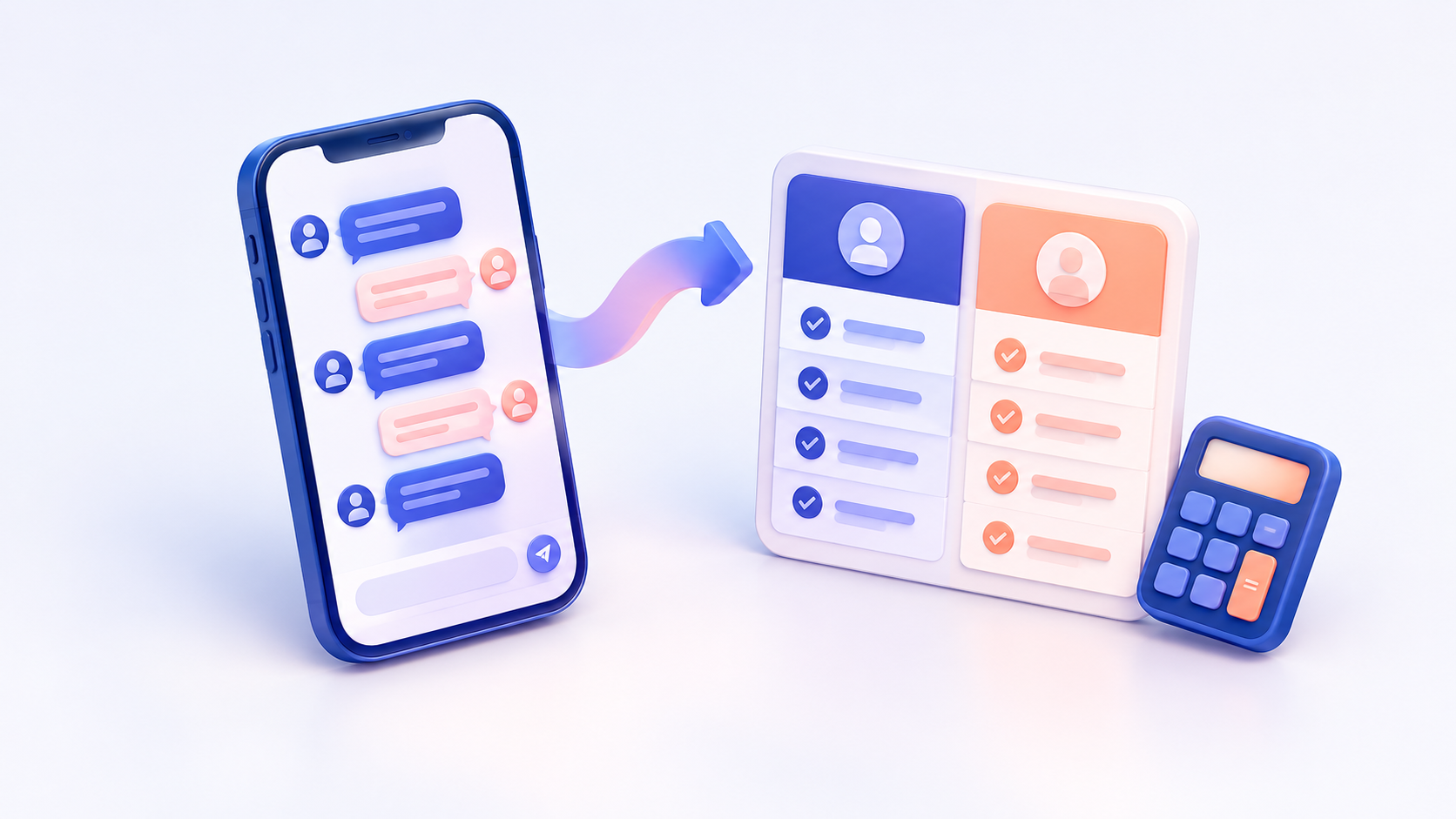
The honest goal: tonight you ask one question from your own week, you get a reply you can scan or tap, and if you only get paragraphs you know which of three limits you hit.
Who This Is Useful For
You already use ChatGPT for ordinary questions, and a wall of text is why you stopped trusting the longer answers. You explain things to other people, at home or at work, and a diagram would replace a speech. You do not want a setup project. One chat is the whole lesson.
What You Will Learn
What You Need
A ChatGPT account. A free account is enough for this lesson. The model name on screen depends on the plan, as above. Use Chat. Have one real question ready: two options you are choosing, a bill you could split, or something you might have to explain this week.
Step 1 — Open Chat, and stay there
Open chatgpt.com or the ChatGPT app and start a new chat. Stay on Chat. The help center says Intelligent UI is not available in the Work tab and not available in Voice. If a paid plan has the Pro reasoning option on, that path is GPT-6 Astra, and Astra does not support this feature. Use an ordinary chat model before you decide the feature is missing.
Pro tip: Do this on the web the first time. The “simpler replies” setting below is documented for the web app. The phone is fine for the questions themselves.
Step 2 — Ask for a choice you can see
Type a comparison you actually have to make. Name two options and three things you care about. Then name the layout.
Compare these two options side by side.
Option A: cook at home on Friday.
Option B: book a table for four.
Rows: cost, time, and what can go wrong.
Under the table, three sentences on which one fits a tired weekday.
Use only the facts in this message. If a number is missing, write “not given” in that cell.
OpenAI says a comparison is one of the cases that works better side by side, and that you can ask for a different style in that conversation. Custom Instructions can also say “use tables when comparing options.” Those lines guide the reply. The exact layout can still change from one answer to the next.
Change the two options to something you are really deciding. Leave the last line in. A grid is not evidence. It is a view of the reply.
Pro tip: If a cell shows a price or a time you never typed, reply: “Replace every number you invented with ‘not given.’”
Step 3 — Ask for a tool, then change one number
OpenAI’s own examples of a tool made in the moment are a savings calculator, a bill splitter for dinner with friends, and a game you can play in the conversation. Use a bill if you have one. If you do not, use the figures below and treat them as practice, not as your finances.
Make a bill splitter I can use in this chat.
Four people. Food was 86. Tip starts at 10 percent. One person only had a drink that cost 8, and that drink is part of the 86.
Show each share. Give me a way to change the tip and see the shares change.
Do not hide cents. If you cannot make an editable form, say so and show the arithmetic in a table instead.
If a form appears, change the tip once. Read the new shares. If the reply is only a paragraph, answer: “Put that in a form I can edit, with the tip as a field.”
OpenAI says some pieces, such as checklists, can keep their state when you refresh that same chat. State is not kept across different chats. The splitter is a scratchpad for this thread. Copy any figure you want to keep into a note you control.
Pro tip: Ask “which of these numbers came from me?” The right answer is a short list, not a new calculation.
Step 4 — Ask for an explanation you can point at
The launch notes use three pictures of this: a Sunday roast with its timing beside the recipe, a road trip whose stops sit on a map, and a 7-speed bicycle broken into parts you can select. You do not need those topics. Borrow the shape.
Explain how a 7-speed bicycle fits together, for someone who has never repaired one.
Let me select the main parts.
For each part: one sentence on what it does, and one sentence on what fails first.
No brand names. If you are unsure of a part, say unsure.
Read two labels against what you know about a bicycle. A neat diagram can name a part that is not there. The picture is the model’s answer, not a photo of a bike in front of you.
Then ask: “What did you leave out?” A clean layout hides omissions. The follow-up is where they show up.
Pro tip: When you explain this to someone else, show them the diagram and read the “what fails first” line. If you cannot say that line in your own words, you do not understand it yet, and neither does the picture.
Step 5 — Choose text again, on purpose
On the web, OpenAI documents this path for a simpler style: Personalization → Layout and Visuals → Simple. It reduces visual and interactive elements. Some may still appear. The help center does not promise the same menu on every phone. If you cannot find it, add one line to the question: “Answer in plain sentences. No diagram and no form.”
Connected plugins, such as Gmail, Health, and Finance, keep working. Intelligent UI does not replace them. It changes the shape of the reply in Chat.
Intelligent UI also works across the reasoning levels from Instant through Extra High. That is a separate control from the Astra option in Step 1. If a menu is unfamiliar, leave it where it is and judge the reply you got in Chat.
Pro tip: Keep two chats. One where a layout helped. One where you had to demand plain sentences. Next time, start from the ask that matched the job.
Common Mistakes to Avoid
Judging it from Voice or the Work tab. Both are outside the feature. A spoken paragraph is what Voice does.
Trusting a chart that filled in the blanks. If you did not type the price, the date, or the name, the cell is a guess. The last line of the Step 2 prompt exists so those cells say “not given.”

Expecting the widget to survive a new chat. Refreshing the same thread can keep a checklist. A new thread starts empty. Copy the result out.
Going Further
When a sentence really is the best answer, say so. GPT-6 is supposed to stay with text in that case. The next time you need a layout, name it in the first message: table, map, checklist, or a form with one field you can change.
If you teach or you write for other people, save three asks that worked for you. “Side by side.” “Let me change one number.” “Select a part and explain it.” That list is the whole skill. The model name on the plan is not.
Key Takeaways
OpenAI’s 7 October 2026 note on what the replies can include, and the examples they use.
The help center page for where it works, where it does not, and the Simple layout setting.
Sources: