AI 101Beginner10 min read

Microsoft Copilot for Beginners: Your Everyday AI Assistant

A beginner-friendly walkthrough of Microsoft Copilot — what it is, where to find it (free and paid), and easy first tasks to save time in Word, Excel, Outlook, and more.

Microsoft Copilot for Beginners: Your Everyday AI Assistant

Overview

If you use Windows, Word, Excel, or Outlook, you already have an AI assistant sitting right next to you — you might just not have said hello yet. It's called Microsoft Copilot, and it's Microsoft's answer to ChatGPT, woven directly into the everyday tools you already know. Ask it a question, have it draft an email, summarize a long document, tidy up a spreadsheet, or turn rough notes into a slide deck — in plain English, no technical skills required.

This is a gentle, beginner-friendly walkthrough. We'll cover what Copilot actually is, the difference between the free and paid versions (so you don't pay for something you don't need), where to find it, and — most importantly — easy first tasks you can try in the next five minutes to see the magic for yourself.
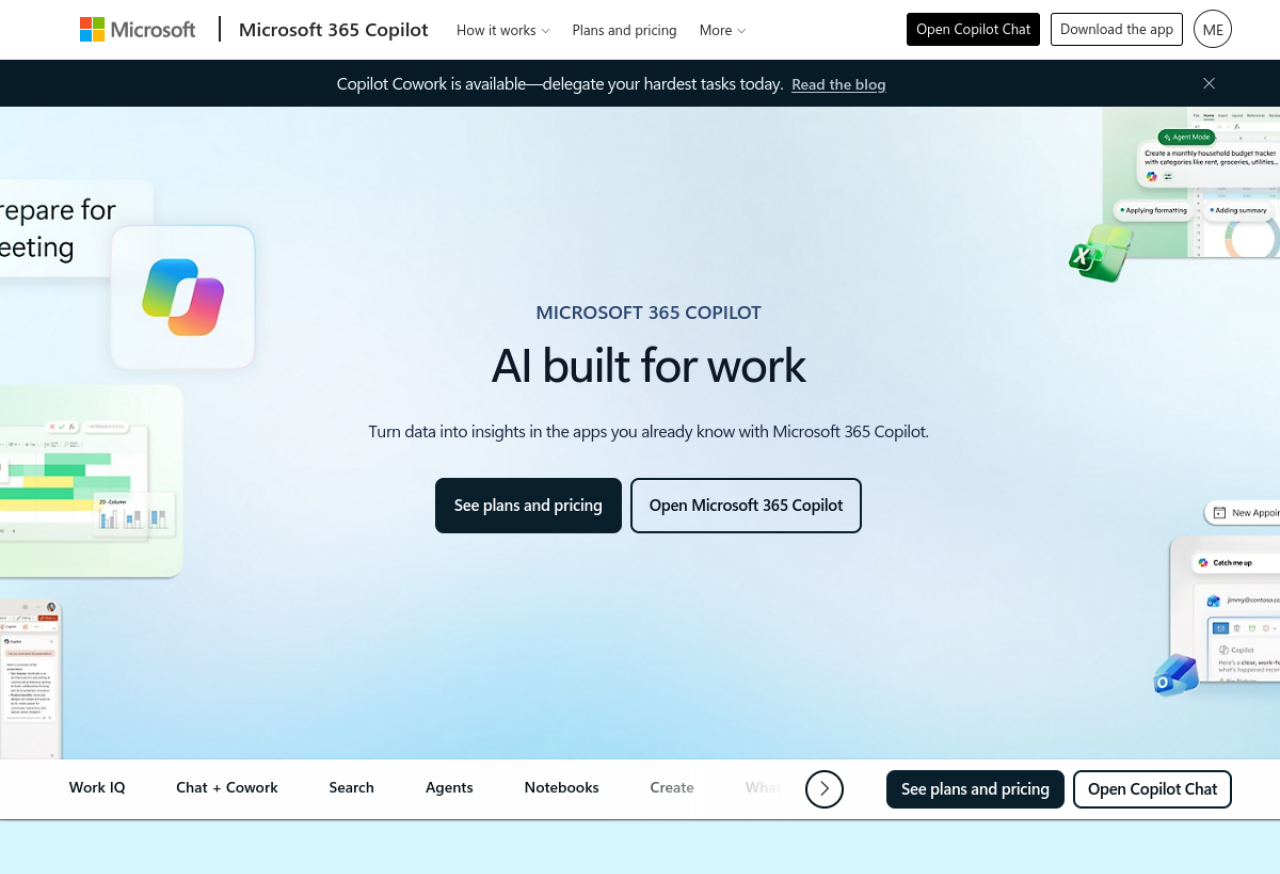
Microsoft 365 Copilot — "AI built for work," helping right inside the apps you already know like Excel and Outlook.

Don't worry if you've never used an AI tool before. Copilot is designed to feel like chatting with a helpful colleague — you type what you want in normal words, and it does the heavy lifting. Let's get you comfortable.


Difficulty: Easy — total beginners welcome · You'll need: a free Microsoft account (a work or school account unlocks more) · Cost: the core Copilot is free; paid tiers add extras · Updated: August 2026

What Is Microsoft Copilot?

Think of Copilot as a smart assistant that lives inside Microsoft's software. Under the hood it runs on the same class of powerful AI models that power ChatGPT, but Microsoft's twist is putting it where you already work — in your browser, in Windows, and (with a paid plan) right inside Word, Excel, PowerPoint, Outlook, and Teams.

There are really two ways it helps:

  • As a chat assistant — like a search engine you can have a conversation with. Ask a question, get a written answer with links, brainstorm ideas, or have it explain something confusing in simpler terms.
  • As an in-app helper — inside your Office apps, it can see the document, spreadsheet, or email you're working on and act on it: "summarize this," "draft a reply," "make a chart from this data."
  • You don't need to learn commands or code. You just describe what you want, the way you'd ask a coworker.

    Where You'll Find Copilot

    Copilot shows up in a few places, and knowing them makes it feel far less mysterious:

  • The free Copilot app and website (copilot.microsoft.com, plus a phone app) — a chat assistant anyone can use, free, with web search built in.

  • In Windows and Edge — often a Copilot button in your taskbar or browser sidebar, so help is one click away while you work.
  • Inside your Office apps (with a paid plan) — a Copilot button in Word, Excel, PowerPoint, Outlook, and Teams that works on your actual files and emails.
  • One friendly assistant across your everyday tools — Copilot can help draft a document, analyze a spreadsheet, build slides, and summarize your email.
    One friendly assistant across your everyday tools — Copilot can help draft a document, analyze a spreadsheet, build slides, and summarize your email.

    Free vs Paid: Which Copilot Is Which

    This is the part that confuses everyone, so here's the simple version. There are three tiers:
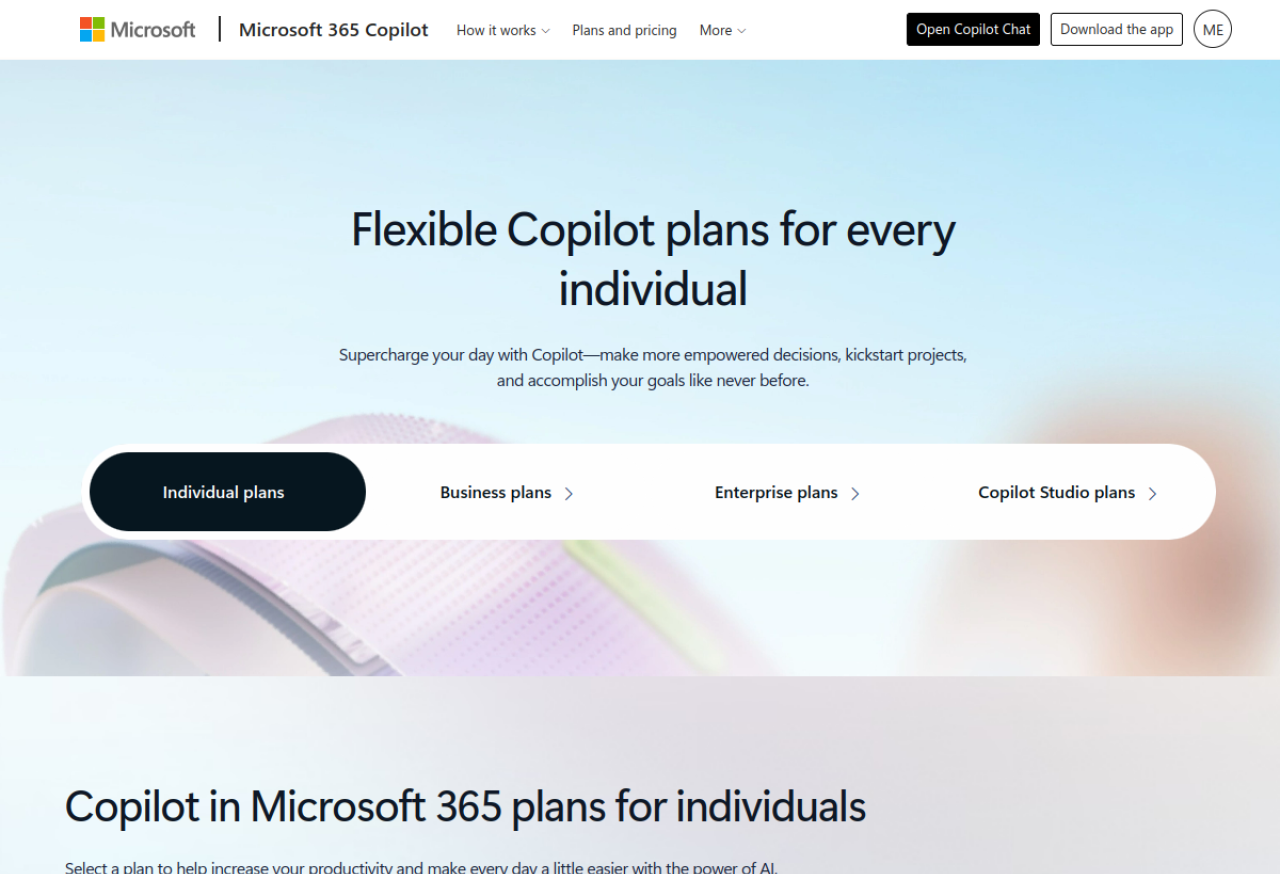
    Microsoft's Copilot plans, from the free chat assistant up to Copilot Pro and Microsoft 365 Copilot — pick the one that fits how you'll use it.
    Microsoft's Copilot plans, from the free chat assistant up to Copilot Pro and Microsoft 365 Copilot — pick the one that fits how you'll use it.
  • Microsoft Copilot (Free) — the chat assistant at copilot.microsoft.com. Ask questions, get answers, brainstorm, write drafts, search the web. Great for most personal use. It does not work inside your Office apps, and image generation is limited.
  • Copilot Pro (~$20/month, for individuals) — adds priority access, AI image generation, and — the big one — Copilot inside Word, Excel, PowerPoint, Outlook, and OneNote for your personal Microsoft 365.
  • Microsoft 365 Copilot (~$30/user/month, for business) — the work version. It adds a "work" chat that can securely search across your company's files, emails, and meetings (respecting permissions), plus Copilot in all the Office apps for a team.
  • The easy rule: start with the free version to get comfortable. Only upgrade to Pro if you specifically want Copilot writing and analyzing inside Word and Excel, or to a business plan if your whole team needs it on work data.

    Your First 5 Minutes with Copilot

    Enough theory — let's actually use it. This works on the free version.

    Step 1: Open Copilot

    Go to copilot.microsoft.com (or open the Copilot app), and sign in with your Microsoft account. You'll see a simple chat box — that's the whole interface.

    Step 2: Ask it anything

    Type a real question the way you'd say it out loud, and press enter. Try one of these:

  • "Explain compound interest like I'm 12."
  • "Give me 5 healthy dinner ideas I can make in 20 minutes."
  • "What should I ask when buying a used car?"
  • You'll get a clear, written answer — and you can just keep chatting to dig deeper ("make that vegetarian," "shorter, please").

    Step 3: Try a real task

    Now hand it something useful:

  • "Draft a polite email asking my landlord to fix the heating."
  • "Summarize this in 3 bullet points: [paste a long article or your notes]."
  • "Turn these rough notes into a simple to-do list: [paste notes]."
  • That's it — you're using AI. No setup, no jargon.

    Microsoft Copilot (free)

    The free chat assistant — ask questions, draft text, brainstorm, and search the web. The best place for a total beginner to start.

    copilot.microsoft.com

    Easy Wins: 6 Things to Try Today

    Once you're comfortable, these are the everyday tasks people love Copilot for:

  • Draft an email — "Write a friendly follow-up to a client who hasn't replied in a week."
  • Summarize anything — paste a long report, article, or email thread and ask for the key points.
  • Brainstorm — "Give me 10 name ideas for a small bakery," then refine.
  • Make a plan or list — "Create a simple weekly meal plan and a shopping list."
  • Explain the confusing stuff — "Explain what an APR is, simply, with an example."
  • Create an image (Copilot Pro) — "Make a birthday card image with a cute dog and balloons."
  • The trick with all of these: if the first answer isn't quite right, just say so. "Make it warmer," "shorter," "more formal" — Copilot happily tries again.

    Copilot Inside Your Office Apps (Pro / Microsoft 365)

    If you upgrade, Copilot becomes genuinely powerful because it can work on your real files. A taste of what that looks like:

  • Word — "Write a first draft of a project proposal from these three bullet points," or "tighten this paragraph."
  • Excel — "Which region had the biggest sales drop last quarter?" or "add a column that flags orders over $500" — in plain English, no formulas required.
  • PowerPoint — "Turn this Word document into a 6-slide presentation."
  • Outlook — "Summarize this long email thread and draft a reply agreeing to the meeting."
  • Teams — "Catch me up on what I missed in this meeting and list the action items."
  • Microsoft 365 Copilot — AI built for work

    The paid, in-app version: Copilot inside Word, Excel, PowerPoint, Outlook, and Teams, plus a secure work chat across your files. See plans and pricing.

    microsoft.com

    A Few Honest Tips


  • Double-check the facts. Copilot is fast and confident, but like all AI it can occasionally be wrong or make something up. For anything important — numbers, dates, medical, legal, or money matters — verify before you rely on it.

  • You're the boss. Copilot drafts; you decide. Always read what it wrote before sending, publishing, or acting on it.

  • Mind your data. With a work or school account, Microsoft provides extra data protection for what you type into Copilot at work. On the free consumer version, avoid pasting confidential or sensitive information.

  • Start free, upgrade later. Get comfortable on the free version first. Only pay for Pro or a business plan once you know you want Copilot inside your Office apps.
  • Common Beginner Questions

    Do I need to install anything? No. The easiest way in is your web browser — go to copilot.microsoft.com and sign in. There's also a free Copilot phone app if you'd rather have it on your phone.

    Is Copilot the same as ChatGPT? They're cousins. Both are AI chat assistants built on similar underlying technology. Copilot's edge is that it's woven into Microsoft's tools (Windows, Edge, and — on paid plans — Word, Excel, and Outlook) and includes live web search for free.

    Will it do my whole job for me? No — and that's the right way to think about it. Copilot is an assistant: it drafts, suggests, and speeds things up, but you're the one who reviews, decides, and hits send. Treat its output as a strong first draft, not a final answer.

    Is it safe to use for work? If you sign in with a work or school account on a Microsoft 365 plan, Microsoft applies extra data protections to what you type. On the free consumer version, play it safe and avoid pasting confidential company or personal information.

    Which version should a beginner get? The free one. Get comfortable chatting with Copilot first. You'll know it's time to consider Copilot Pro when you find yourself wishing it could help inside your actual Word documents and Excel sheets.

    What if I don't like the answer? Just tell it. "Make it shorter," "sound more casual," "try again with a different angle." Copilot is built for back-and-forth — the second or third try is often the keeper.

    Key Takeaways

  • Microsoft Copilot is Microsoft's AI assistant — a ChatGPT-style helper built right into the tools you already use.
  • You can start free at copilot.microsoft.com — chat, draft, summarize, and search, no cost and no setup.
  • Paid tiers add in-app power: Copilot Pro (~$20/mo) puts Copilot inside Word, Excel, and more for individuals; Microsoft 365 Copilot (~$30/user/mo) does it for teams on work data.
  • Just talk to it. Describe what you want in normal words; if the answer isn't right, ask it to adjust.
  • Stay in charge: verify facts, review before you send, and keep sensitive data out of the free version.
  • Microsoft — Free Copilot vs Copilot in Microsoft 365

    Microsoft's own side-by-side of what the free version does versus the paid in-app version — handy when deciding whether to upgrade.

    support.microsoft.com

    Sources: Microsoft Copilot · Microsoft 365 Copilot · Free vs Microsoft 365 Copilot (Microsoft Support)

    Learn AI, after work

    Track your progress, earn XP, and unlock more free tutorials in the AfterWork Bytes app.

    Open this tutorial in the app

    More AI tutorials