Overview
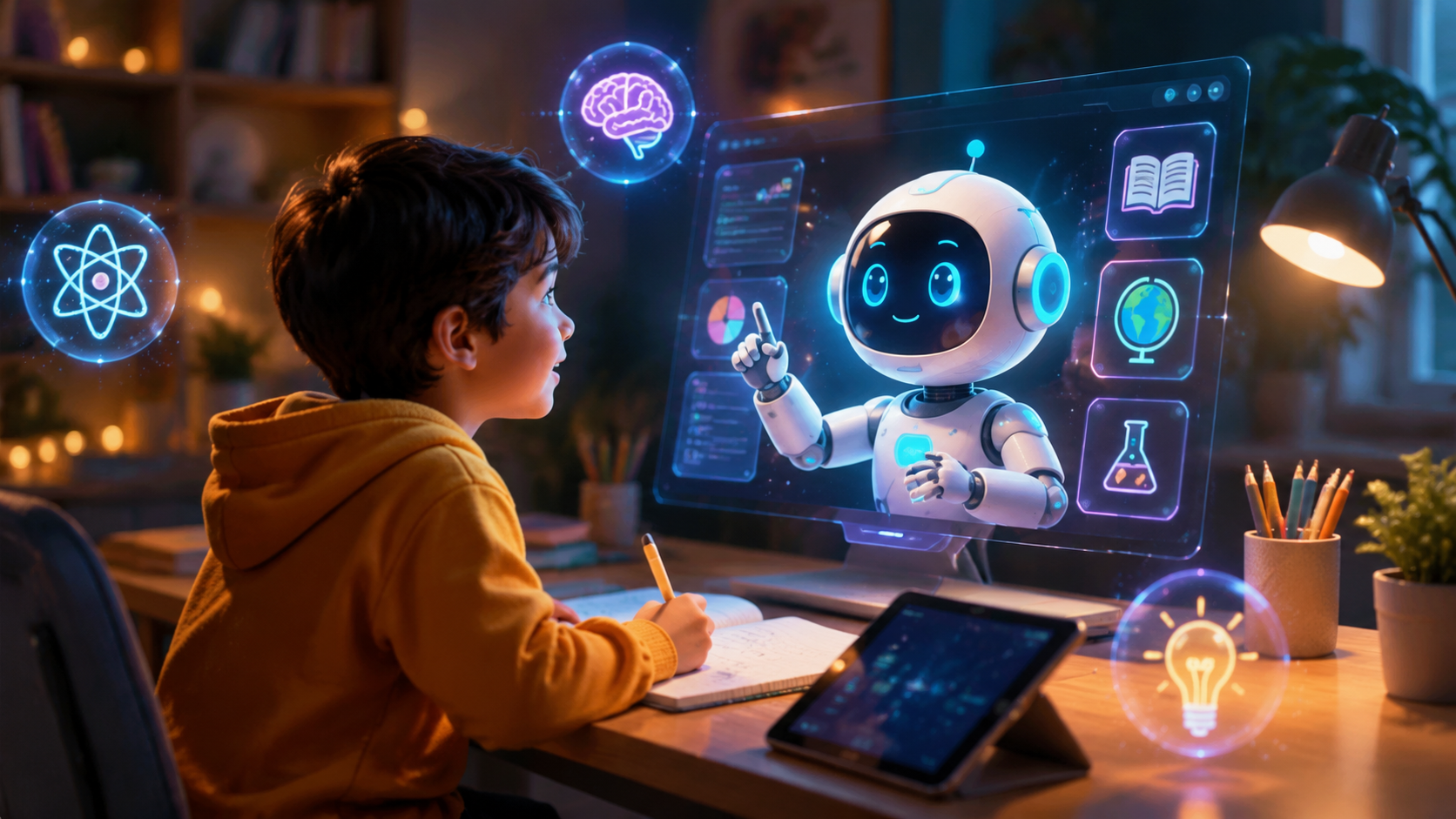
Imagine having a patient, always-available tutor for your child that can explain concepts in simple, engaging ways. With GPT-5.5, you can build a real-time AI tutor that adapts to a child's learning pace and interests. This tutorial is perfect for parents, educators, or anyone interested in creating educational tools without coding.
What You Will Be Able To Do
Why This Matters
Parents and teachers often struggle to find the time to give individualized attention to each child. An AI tutor can provide personalized learning experiences, helping children grasp basic concepts like numbers, letters, and simple science in a fun way. For example, a busy parent can use this tutor to reinforce what their child is learning in preschool, making education more accessible and engaging.
Getting Started
You'll need access to GPT-5.5 through OpenAI's platform. Once you have an account, you're ready to start building your AI tutor.
Step-by-Step Guide
Step 1: Access the OpenAI Playground
Log in to your OpenAI account and navigate to the Playground (https://platform.openai.com/playground). This is where you'll configure your AI tutor.
Step 2: Set Up the Tutor's Personality
In the system message box, paste this prompt to define your tutor's behavior:
You are a friendly, patient AI tutor for 5-year-old children. Use simple words, short sentences, and lots of encouragement. Ask questions to check understanding, and always keep the conversation positive and engaging. If the child gets something wrong, gently correct them and praise their effort.
Step 3: Test Basic Interactions
Start a conversation with your tutor by typing simple questions a child might ask, like "Why is the sky blue?" or "How do I count to 10?" Adjust the temperature setting to 0.7 to make responses more creative and engaging for kids.
Step 4: Save Your Tutor Configuration
Click "Save" to store your settings. You can name your tutor something fun like "Mr. Happy Helper" or "Learning Buddy."
Step 5: Share Your Tutor
Use the "Share" button to generate a link you can send to others. They can interact with your AI tutor without needing an OpenAI account.
Real-World Example
Sarah, a preschool teacher, created an AI tutor named "ABC Friend" to help her students practice letter recognition. She configured it to ask questions like "Can you find the letter B on this page?" and give encouraging feedback like "Great job! That's the letter B!" The children love interacting with the tutor during free play time, and Sarah has noticed improved letter recognition in her class.
Common Mistakes to Avoid
Pro Tips
Your Challenge
Summary
You've now built a real-time AI tutor that can help young children learn through engaging conversations. This is just the beginning—you can expand your tutor to cover more subjects, add multimedia elements, or even create specialized tutors for different age groups. The possibilities for educational AI tools are endless!