Overview
Vector graphics — logos, icons, clean illustrations that stay razor-sharp at any size — used to require a designer and pricey software. SVG (Scalable Vector Graphics) is the format behind almost every crisp logo and icon on the web, and until recently, making one meant knowing Illustrator. Not anymore: AI can now turn a plain-English description into real, editable vector art in minutes, even if you've never opened design software.
This is a friendly, honest walkthrough for total non-designers. You'll learn three genuine ways to make SVGs with AI, how to tell a real SVG from a fake one (this trips up almost everyone), and how to clean up and use your art. No jargon, no design degree required.
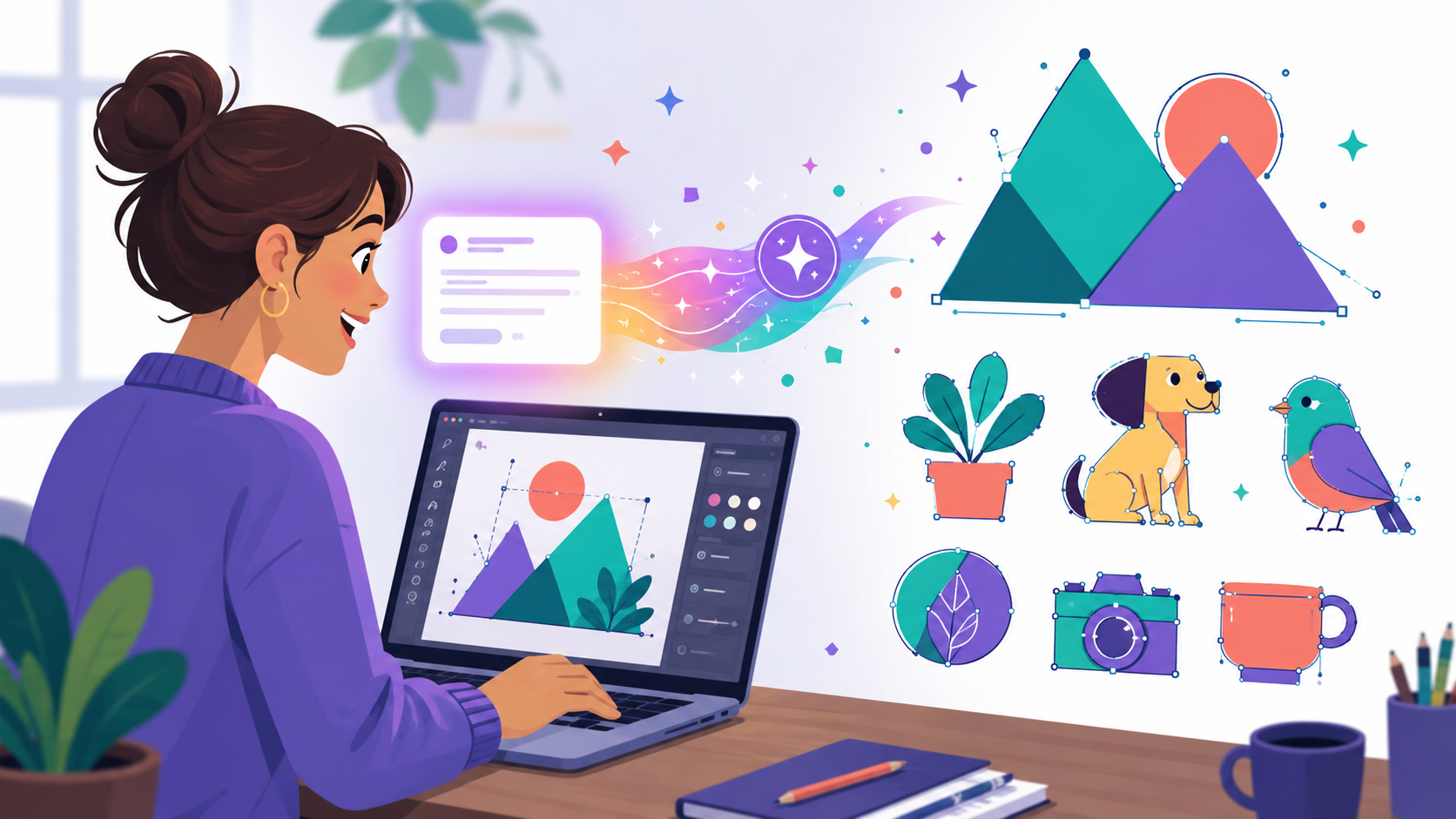
One honest heads-up before we start, because it will save you a lot of frustration: a surprising number of "AI SVG generators" don't actually make vector art — they make a normal image and hide it inside an SVG wrapper. We'll show you exactly how to spot that, so you always end up with the real thing.
Difficulty: Easy — no design experience needed · You'll need: a free AI chat account (ChatGPT, Claude, or similar) and a web browser · Cost: free to start; some dedicated tools have paid tiers · Updated: August 2026
Who This Is For
What You'll Learn
SVG in 60 Seconds
A normal image (JPG or PNG) is a grid of coloured pixels — blow it up and it goes blurry. An SVG is a set of instructions ("draw a circle here, a triangle there, fill it teal") that your browser renders fresh at any size. That's why SVGs are perfect for logos and icons: they stay crisp on a business card and a billboard, the files are tiny, and — best of all for us — you can open and edit them in a plain text editor, changing a colour or shape by hand. That editability is the whole reason AI + SVG is such a powerful combo for non-designers.
The One Thing to Know First: Real SVG vs "Fake" SVG
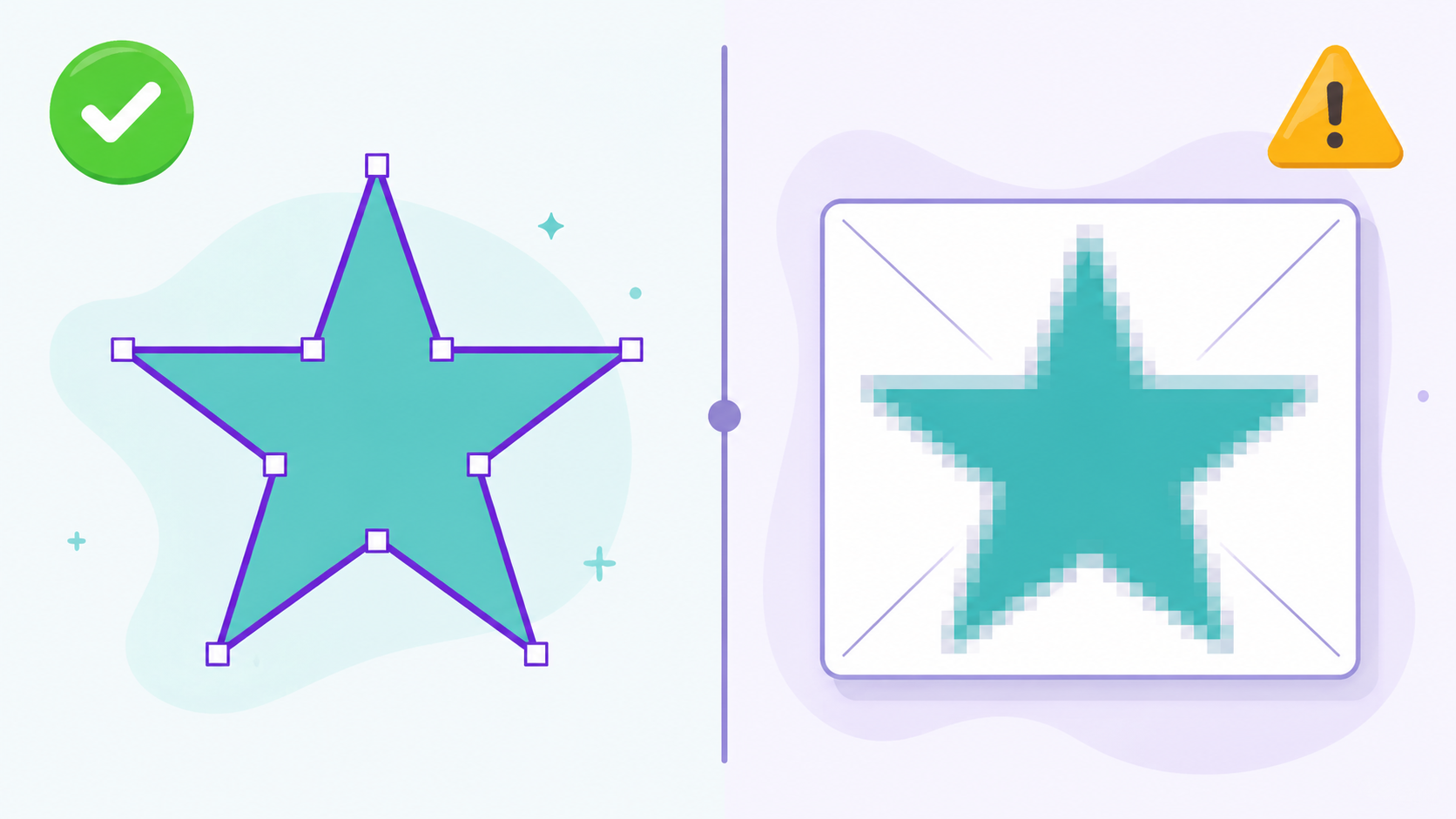
Here's the trap. Many tools advertised as "AI SVG generators" actually create an ordinary raster image (a PNG) and then wrap it inside an .svg file. It looks like an SVG and has the right file extension, but it's a bitmap in disguise — it won't scale cleanly, the file is bloated, and you can't edit the shapes.
The 5-second check: open your file in any plain text editor (or your browser's "view source"). A real SVG is full of tags like <path>, <circle>, <rect>, and <polygon>. A fake one contains a line like <image xlink:href="data:image/png;base64,..."> — that's a photo hiding inside. If you see that, it's not a true vector; go back and use one of the real methods below.
3 Ways to Make SVGs with AI
Method 1: Ask an AI chat to write the SVG code (best for simple icons & logos)
This is the most beginner-friendly and it produces genuinely editable vectors. Large language models like ChatGPT and Claude can literally write SVG code for you. Open a chat and try a prompt like:
Write clean SVG code for a simple flat coffee-cup icon.
Use only vector shapes (paths, circles, rects) — no embedded images.
Style: minimal, rounded, two colours (warm brown and cream).
100 x 100, transparent background.
Give me the complete code from <svg> to </svg>.
Then: copy the whole <svg>…</svg> block, paste it into a plain text editor, save it as coffee.svg, and double-click to open it in your browser. To recolour, find the fill="..." values and change the hex code (e.g. fill="#6F4E37").
Not quite right? Just ask. This is the magic of the code method — you can iterate in plain English. "Make the cup rounder," "add a little steam," "use a thinner outline," "give it a warmer brown" — the AI rewrites the code and you re-paste. Because the whole design is right there as readable text, you're never stuck; you can nudge one shape or one colour at a time until it's exactly yours. This method shines for simple, geometric icons and logos; it struggles with complex, detailed illustrations (they come out rough), which is where the next two methods come in.
A quick reality check on expectations: an AI-written SVG of a "flat mountain logo" or a "chat bubble icon" will look clean and professional. An AI-written SVG of "a photorealistic golden retriever in a forest" will look like a child's crayon drawing — vectors are shapes, not photos. Match the method to the art, and you'll be delighted rather than disappointed.
Method 2: Use a dedicated AI vector tool (best for polished art)
Purpose-built tools generate true vector art from a prompt, often with nicer results than raw code. Recraft is the standout general vector generator; SVG AI and SVGGenie are strong prompt-to-SVG options too. You type a description, pick a style, and download an SVG — many also let you edit or recolour right in the browser.
Just remember the real-vs-fake check from above — confirm the download is actual vector paths, not a wrapped bitmap.
Method 3: Make a raster image, then vectorize it (best for detailed illustrations)
For richer, more detailed art, generate a normal image first with any AI image tool, then convert it to a vector. Vectorizer.AI is the go-to for this — upload your PNG/JPG and it traces it into clean vector paths you can download as an SVG. This gets you illustrations that pure code can't, though very intricate images can produce messy paths, so keep the source relatively simple and high-contrast.
A leading tool for generating true, editable vector art from a text prompt, with styles and in-browser editing. Great for logos and icon sets.
Clean It Up and Use It
Once you have a real SVG, two quick finishing steps make it production-ready:
Then use it anywhere a vector belongs: as a website logo or icon (SVGs load fast and stay sharp on any screen), in slide decks and documents, or scaled up for print. Because it's a true vector, the same file works from a favicon to a poster.
3 Common Mistakes to Avoid
<image> check before you use it anywhere.Pro Tips
Key Takeaways
<path>/<circle> = real, <image ...base64> = a fake bitmap wrapper.Upload a PNG or JPG (including AI-generated art) and it traces it into clean vector paths you can download as an SVG. Best for detailed illustrations.
Sources: Recraft · Vectorizer.AI · SVGOMG (SVG optimizer)