
Overview
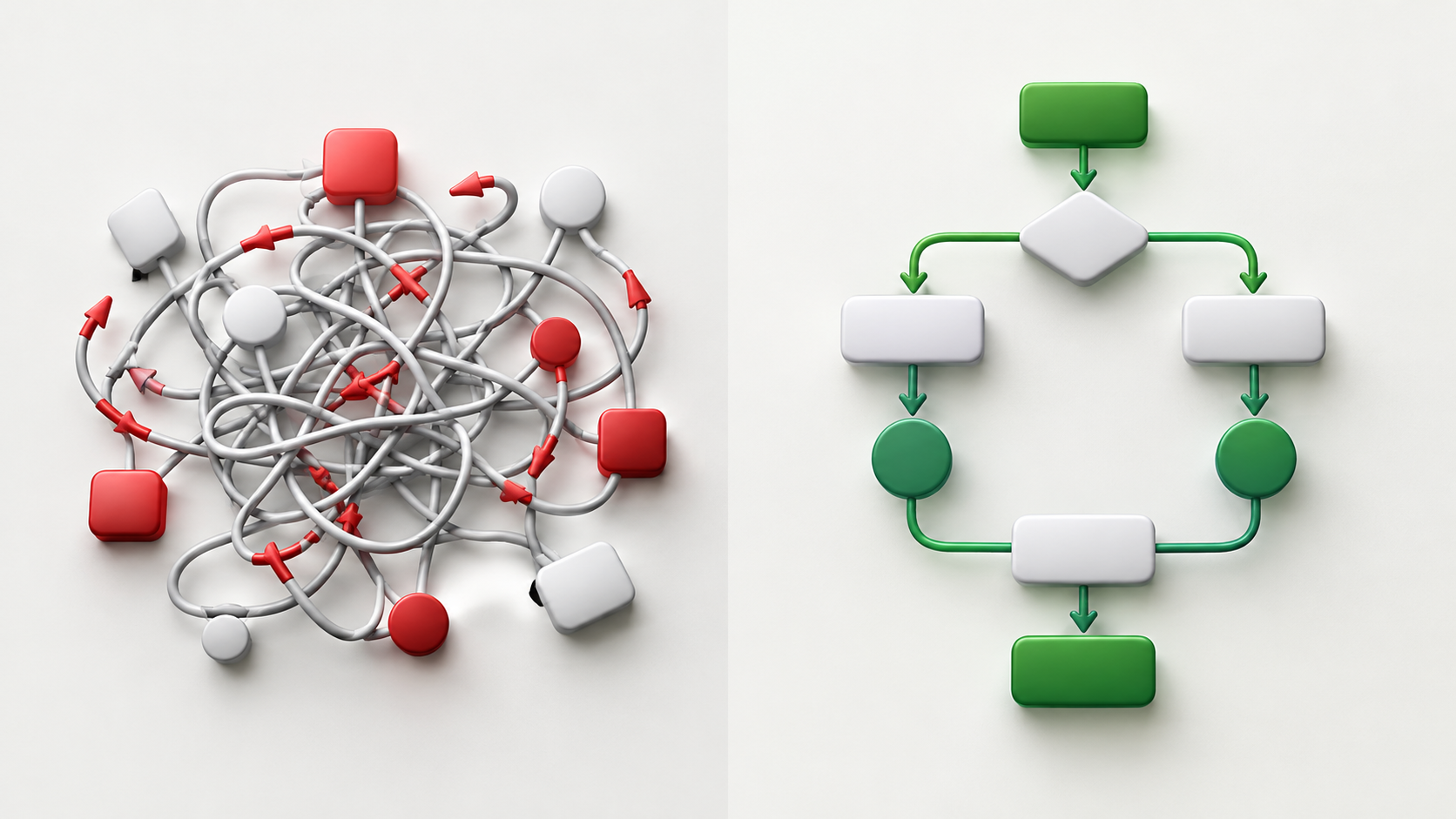
Most "AI diagram" tools spit out a messy PNG you can't edit. This tutorial shows you a free, no-code way to generate clean, fully editable diagrams: you ask any AI chatbot for MermaidJS code, then paste it into Excalidraw (open-source) — which renders it as real shapes you can drag, restyle, and export.

What You Will Be Able To Do
.excalidraw linkWhy This Matters
Imagine you're a product manager writing a spec at 9pm and you need a flow diagram for tomorrow's review. Drawing it by hand takes 30 minutes; most AI tools give you an un-editable blob. With this method you type two sentences, get clean Mermaid, paste it, and spend your remaining time refining instead of drawing. Before: unusable AI slop. After: a presentation-ready diagram in minutes.

Getting Started
Open Excalidraw in one tab and your chatbot in another. That's the whole setup.
Step-by-Step Guide
Step 1: Describe your diagram to the AI
In your chatbot, paste this prompt (edit the description in the last line):
You are a MermaidJS expert. Output ONLY valid MermaidJS code —
no explanation, no markdown fences, no text before or after.
Diagram type: flowchart (top-down).
Make it: a user signup flow — visitor lands on homepage, clicks sign up,
enters email, verifies via email link, lands on dashboard.
Step 2: Ask it to self-check
AI-written Mermaid often has small syntax slips. Reply:
Review that code for MermaidJS syntax errors and fix them. Output only the corrected code.
Step 3: Open Excalidraw's Mermaid importer
On excalidraw.com, click the hamburger menu (☰) → "More tools" → "Mermaid to Excalidraw".
Step 4: Paste and insert
Paste the Mermaid code into the box. Watch the live preview update, then click "Insert" — the diagram drops onto your canvas as real, editable shapes.
Step 5: Refine and export
Drag boxes, change colors, and fix labels directly on the canvas. When done, use Export (top-left menu) for PNG/SVG, or "Save to…" for a shareable .excalidraw link.
Here's the whole flow in action:
Real-World Example
Maya, a marketing manager, needs to show her team how a new lead-magnet funnel works. She opens Claude and types: "Flowchart: visitor sees Facebook ad → clicks to landing page → downloads free guide (enters email) → gets a 3-email nurture sequence → books a call." Claude returns Mermaid; she replies "review for errors," copies the corrected code, and in Excalidraw clicks ☰ → More tools → Mermaid. The funnel appears as clean boxes. She recolors the "books a call" node green, exports a PNG, and drops it into her Monday deck — total time: under six minutes, versus the 40 minutes it took her last quarter in PowerPoint.

Common Mistakes to Avoid
Pro Tips
Your Challenge
Summary
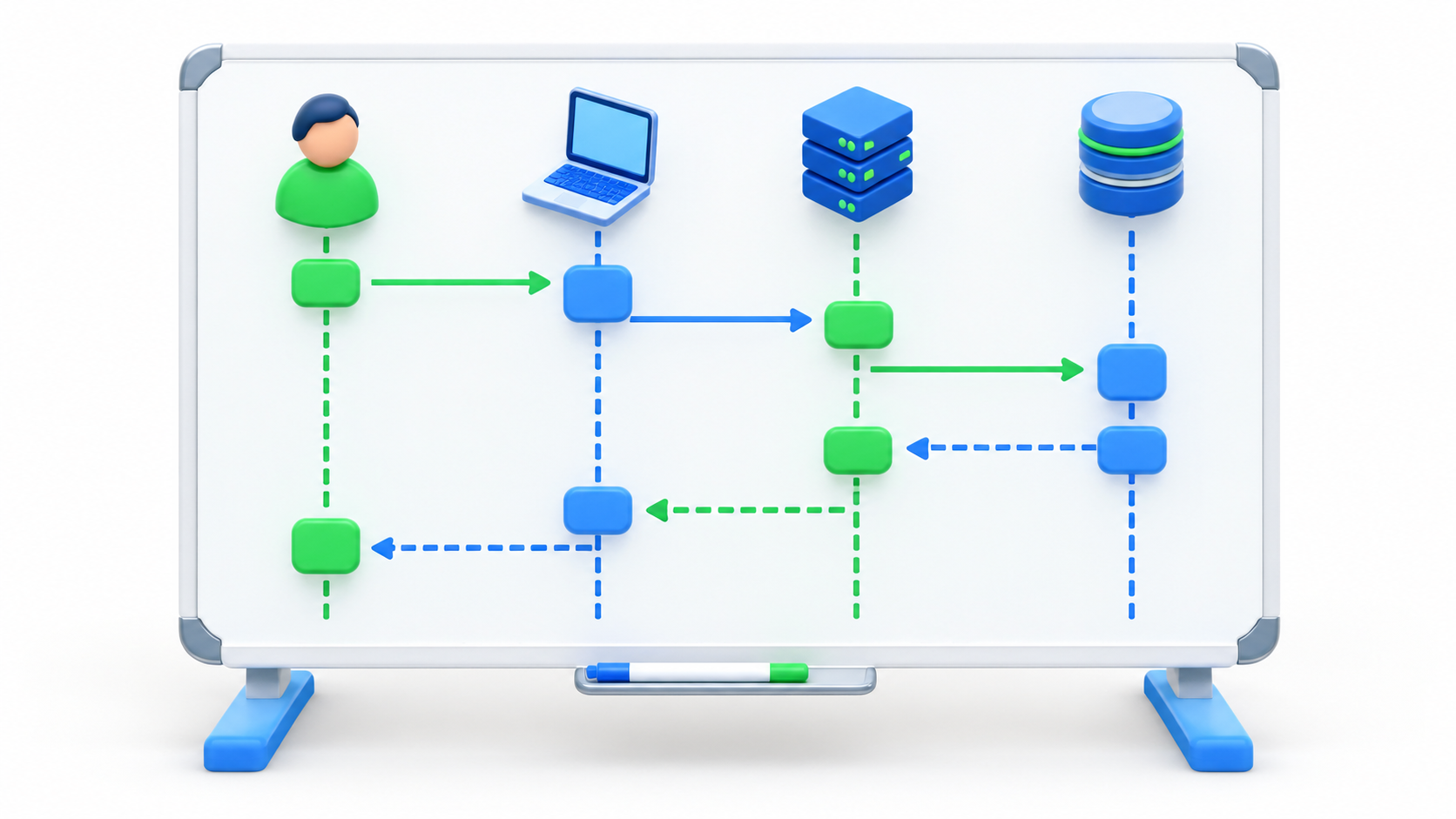
You now have a free, no-code AI diagram pipeline: describe → generate Mermaid → import to Excalidraw → refine. The key difference from "AI slop" is editability — you own and can polish every shape. Next, try architecture or sequence diagrams for your own projects.