Overview
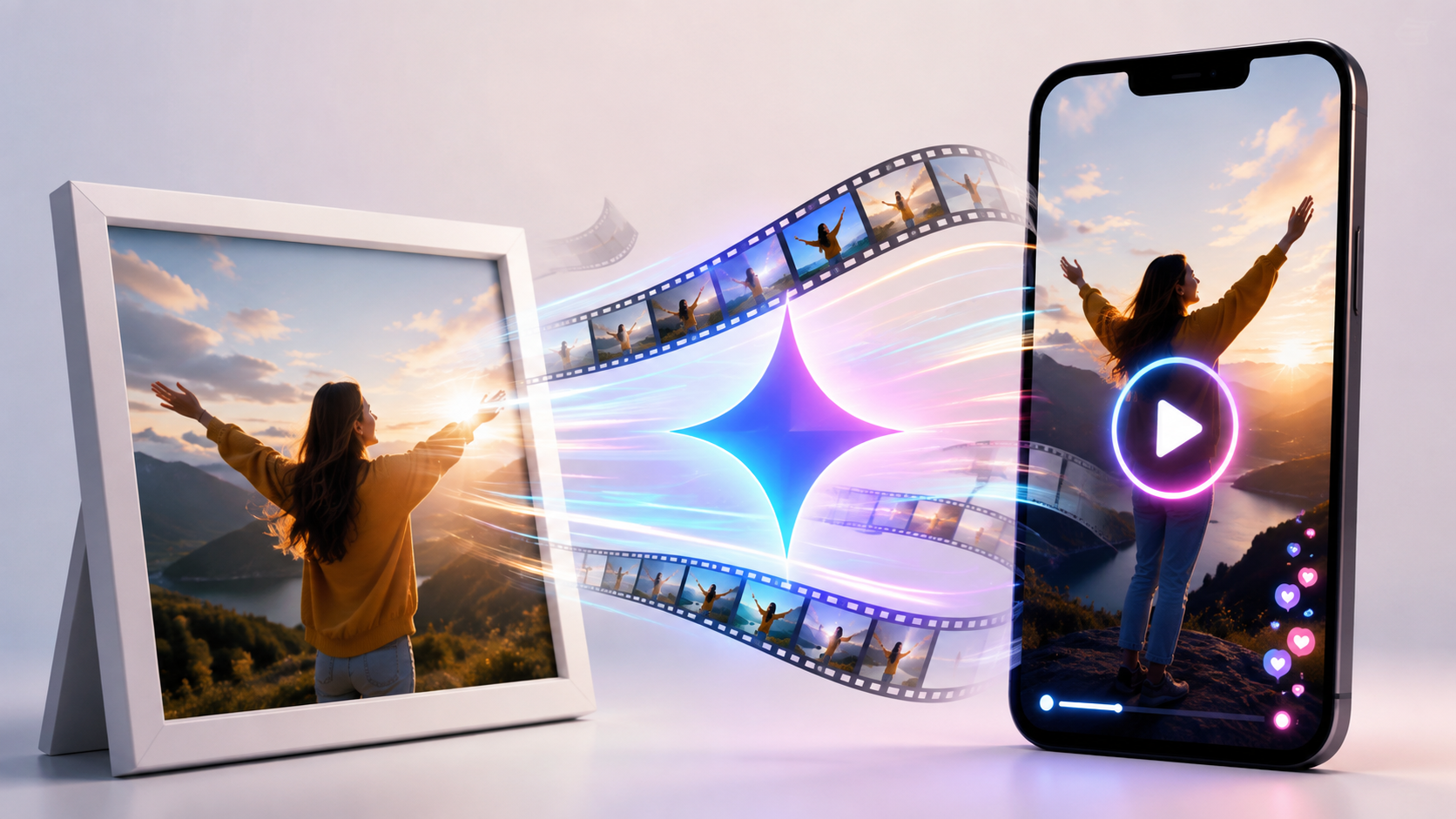
Here's the honest truth first: you don't edit videos on a timeline with "Gemini 3.7 Flash" — that's a text model, and dragging clips around with transitions is what a normal editor does. What Google's AI actually does is generate video. Its models — Gemini Omni Flash and Veo 3.1 — turn a single photo (or a text prompt) into a short, roughly 8-second video clip with sound. In the Gemini app it's a few taps: you don't assemble raw footage, you describe a scene and the AI creates the motion. This guide shows that real workflow — including when a plain editor is still the right tool.
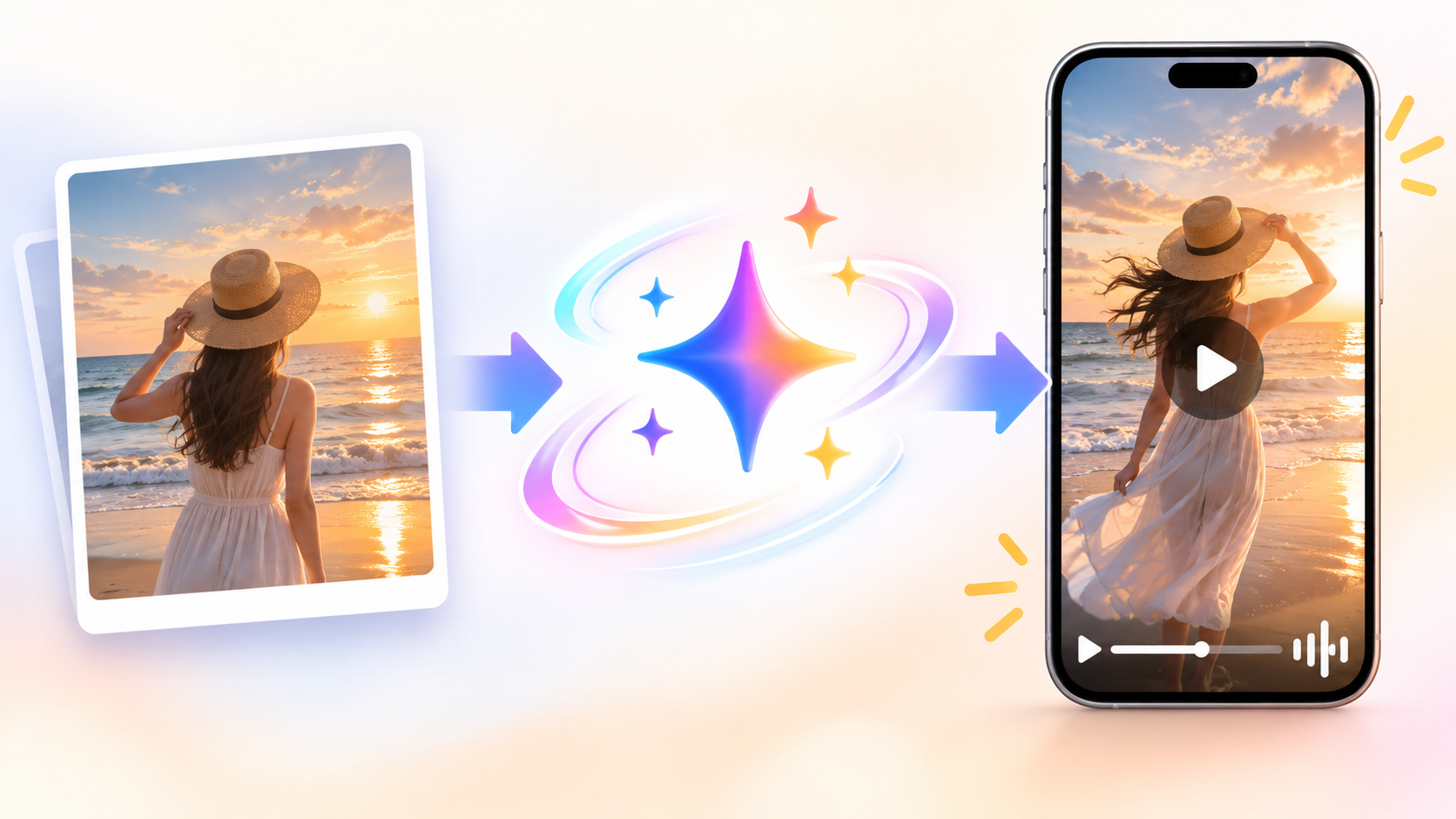
This is a genuinely new kind of video: you're not trimming footage, you're directing an AI that generates it. From one photo you get motion and audio; from a prompt you get a whole scene. It's perfect for eye-catching b-roll, product motion, or a stylized reel — and this guide keeps it honest about the limits (it's a paid, generative feature, and clips are short).
Difficulty: Beginner-friendly · You'll need: the Gemini app (photo-to-video is a paid Google AI Pro/Ultra feature) · Cost: requires a Gemini AI Pro or Ultra plan · Updated: August 2026
What You'll Be Able To Do
Why This Matters
For a marketer or creator, this is a shortcut to motion you'd normally need a shoot for: animate a product photo, create a stylized reel, or generate b-roll from a single still — in minutes, no camera. And because Veo 3.1 generates audio too, a clip comes out feeling finished, not silent.
The honest frame, up front: this is generation, not editing. It's magical for creating short clips from a photo or prompt, and it's the wrong tool for precisely cutting your own footage. Clips are short (~8 seconds), it's a paid feature, and Google watermarks AI video. Use it to make something new; reach for a normal editor when you need frame-level control over footage you already shot.
Before You Start
The Build
Step 1: Turn one photo into a video (Gemini app)
In the Gemini app, open the tool menu in the prompt box and pick "Videos." Upload your photo, then describe the scene and any audio — for example, "slow cinematic push-in, soft morning light, gentle piano." Generate, and Veo 3.1 returns a roughly 8-second clip with sound. Choose vertical (9:16) for Reels/Shorts, and you can upscale to 1080p or 4K.
Step 2: Direct it with a good prompt
With generative video, the prompt is the edit. Specify subject + motion + camera + mood + audio, and keep it to one clear action per clip (you only have ~8 seconds):
Animate this photo: a slow cinematic push-in on the subject, soft morning
light, gentle handheld motion, warm color grade. Audio: light acoustic
guitar and quiet room tone. Vertical 9:16.
Step 3: Stitch multiple clips into a short with Flow
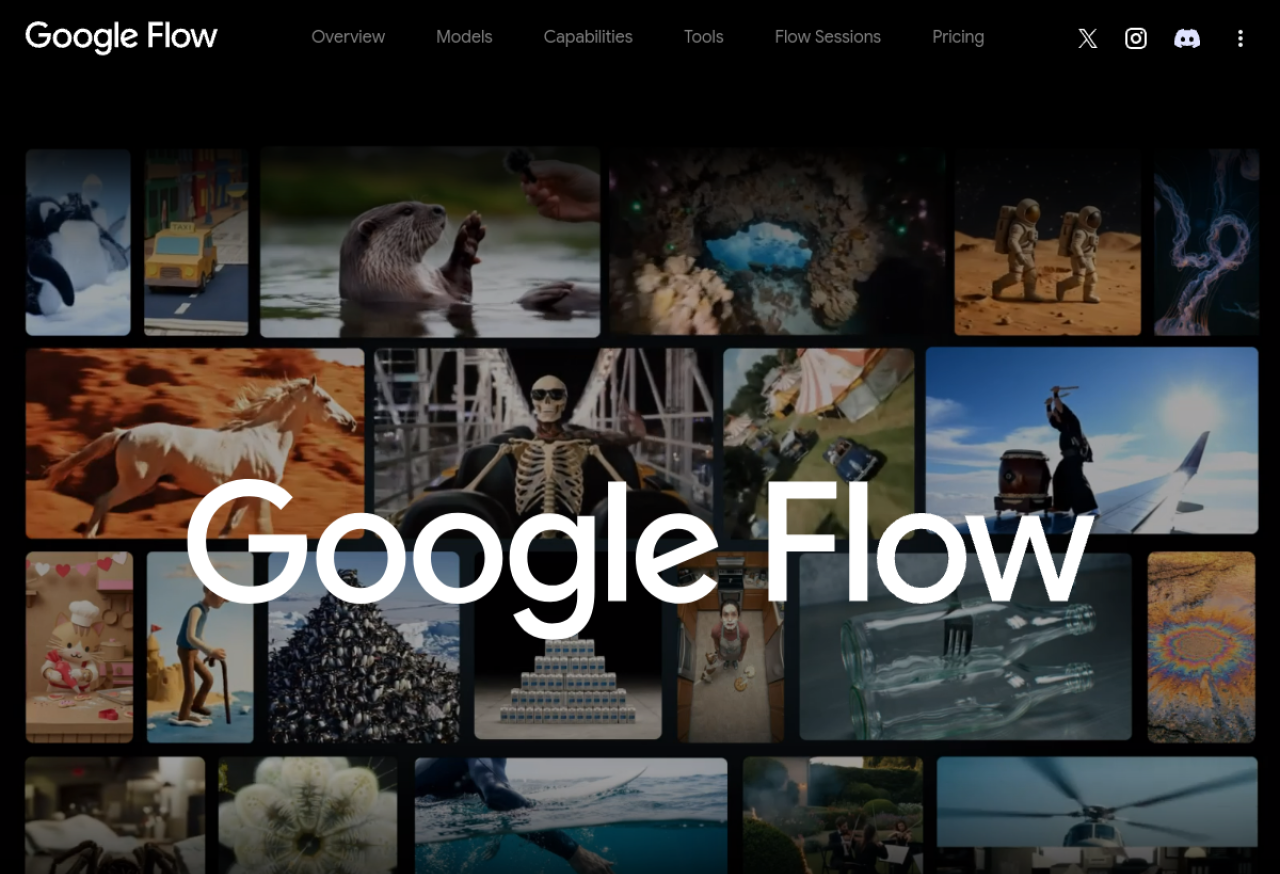
One clip is ~8 seconds; a real short is several. Flow (labs.google/flow) is Google's Veo-powered filmmaking tool: generate multiple clips, keep a character or product consistent with "Ingredients to Video" (upload reference images), arrange your scenes, and export a longer short.
Step 4 (build path): Generate video from the Gemini API
Building an app or automation? The Gemini API offers two video models: Gemini Omni Flash (the default — turns text and images into short videos, with multi-turn conversational editing) and Veo 3.1 (for scene extension, last-frame control, and legacy pipelines). Grab a free key in Google AI Studio and call the video model with your image + prompt.
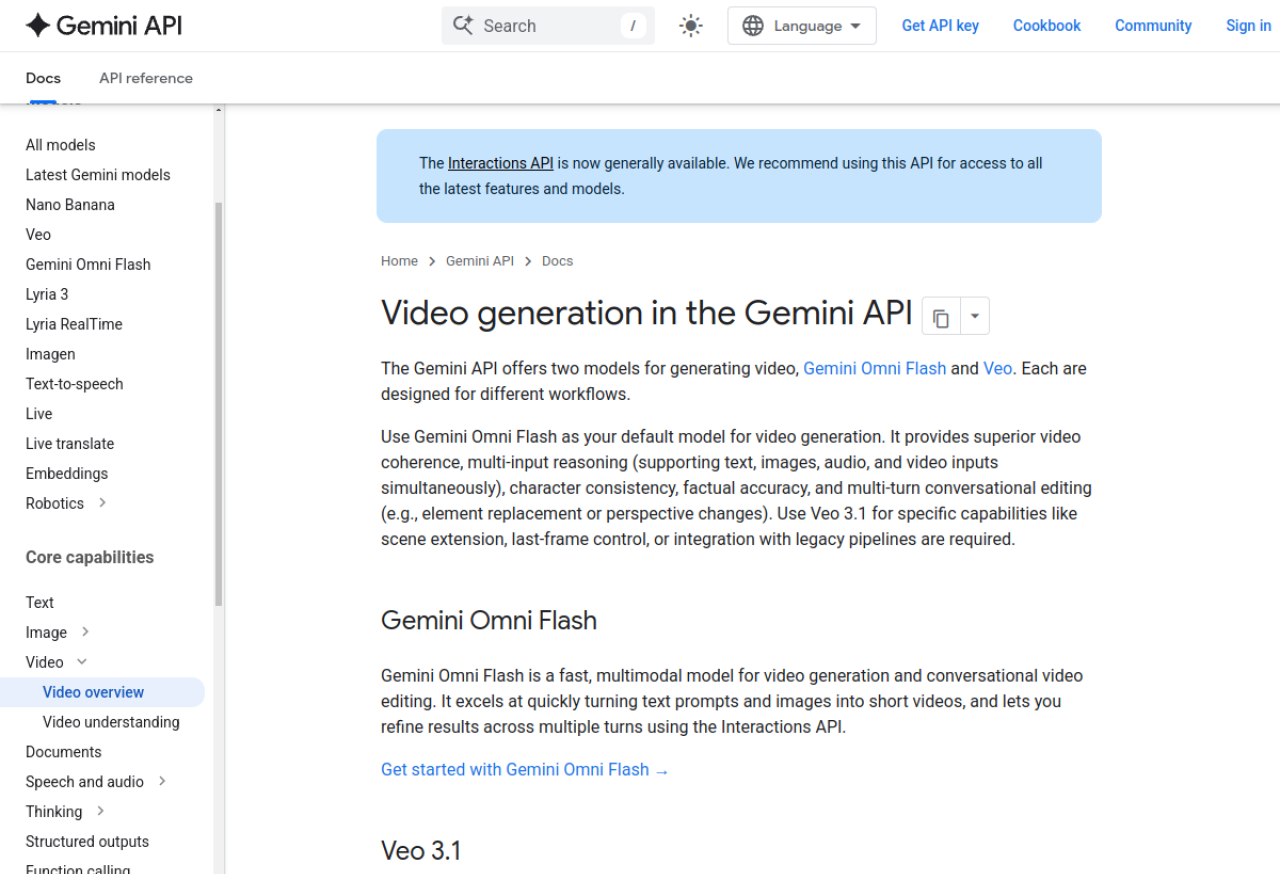
The official docs for generating video with Gemini Omni Flash and Veo 3.1 — image-to-video, prompts, and copy-paste code.
3 Common Mistakes to Avoid
Pro Tips
Your Challenge
Summary
The honest version: you don't "edit" videos with Gemini 3.7 Flash — you generate them with Gemini Omni Flash and Veo 3.1, from a photo or a prompt, and stitch them in Flow. It's a real new superpower for short, eye-catching video — as long as you use it for creating, and reach for a normal editor when you need precise control over footage you already have.
Generate AI video clips and assemble them into a short — scene builder, reference "ingredients," and vertical export for Reels/Shorts.
Sources: Gemini photo-to-video (Google blog) · Veo 3.1 in the Gemini API · Google Flow