
Most "AI video editors" bolt a few smart buttons onto a normal timeline. Palmier Pro does something more radical: it's an open-source macOS editor built so an AI agent can do the editing for you. There's no magic "auto-edit" menu — instead, Palmier runs a small server that lets an agent like Claude drive the editor directly, and you just tell it what you want in plain English: "trim the first clip to eight seconds," "cut the long pauses," "generate an aerial shot and drop it after clip 1." This guide shows how that actually works, how to set it up, and the honest limits (starting with: it's Apple-Silicon-only).
Difficulty: Beginner-friendly · Required tools: a Mac with Apple Silicon on macOS 26 (Tahoe); Palmier Pro (free, open-source); and an MCP-capable AI agent — Claude Code, Claude Desktop, or Cursor · Updated: July 2026
Overview
Palmier Pro is an AI-native video editor for macOS, written from scratch in Swift by Palmier, Inc. (a Y Combinator company). The timeline looks familiar — it takes cues from editors like Premiere Pro — but the workflow is rebuilt around AI. The key piece is a built-in MCP server (Model Context Protocol) that runs locally at http://127.0.0.1:19789/mcp whenever the app is open. That server exposes 30+ tools for manipulating your project: read the timeline, add / trim / split / reorder clips, pull transcripts, trigger generation, and more.
Here's why that matters: any MCP-compatible AI agent — Claude Code, Claude Desktop, or Cursor — can connect to that server and operate the editor on your behalf. You don't click through menus; you instruct an agent, and it performs the edit inside Palmier. On top of that, you can generate footage directly in the timeline using models like Seedance (cinematic video), Kling (fast clips with consistent characters), and Nano Banana Pro (stylized/creative video) — for example, "generate a five-second aerial shot of a city at sunset and add it after clip 1."
Now the honest part, because it decides whether this is even an option for you. The editor, MCP server, and in-app chat are open source (GPLv3) — but the generative-AI pipeline is a paid subscription. And the hard requirement: Palmier runs on macOS 26 (Tahoe), Apple Silicon only. If you're on an Intel Mac, Windows, or Linux, it's not available today — no workaround. It's also a young tool from a new startup, so treat it as cutting-edge rather than battle-tested.
The honest goal: by the end you'll understand how Palmier's agent-driven automation actually works (an MCP server, not a button), have it installed and connected to your AI agent, know how to edit and even generate footage by talking to that agent, and know exactly where the tool fits — and where its Apple-Silicon-only, paid-generation limits rule it out.
Who This Is Useful For
What You Will Learn
What You Need
The 7 Steps
Step 1: Understand how the automation actually works
The single most important thing to get right: Palmier's "automation" is not a menu of AI buttons or a JSON config file. It's an MCP server that turns your editor into something an AI agent can operate. When the app is open, that server is live locally; you connect an agent to it, and the agent reads and edits your timeline through the 30+ tools Palmier exposes. Internalize that and everything else clicks: your job is to direct an agent, and Palmier is the hands.
Pro tip: If you've never used MCP, think of it as a universal remote: Palmier publishes a set of "buttons" (its tools), and your AI agent presses them for you based on what you ask. You don't need to learn the tools — the agent does.
Step 2: Install Palmier Pro (Apple Silicon, macOS 26)
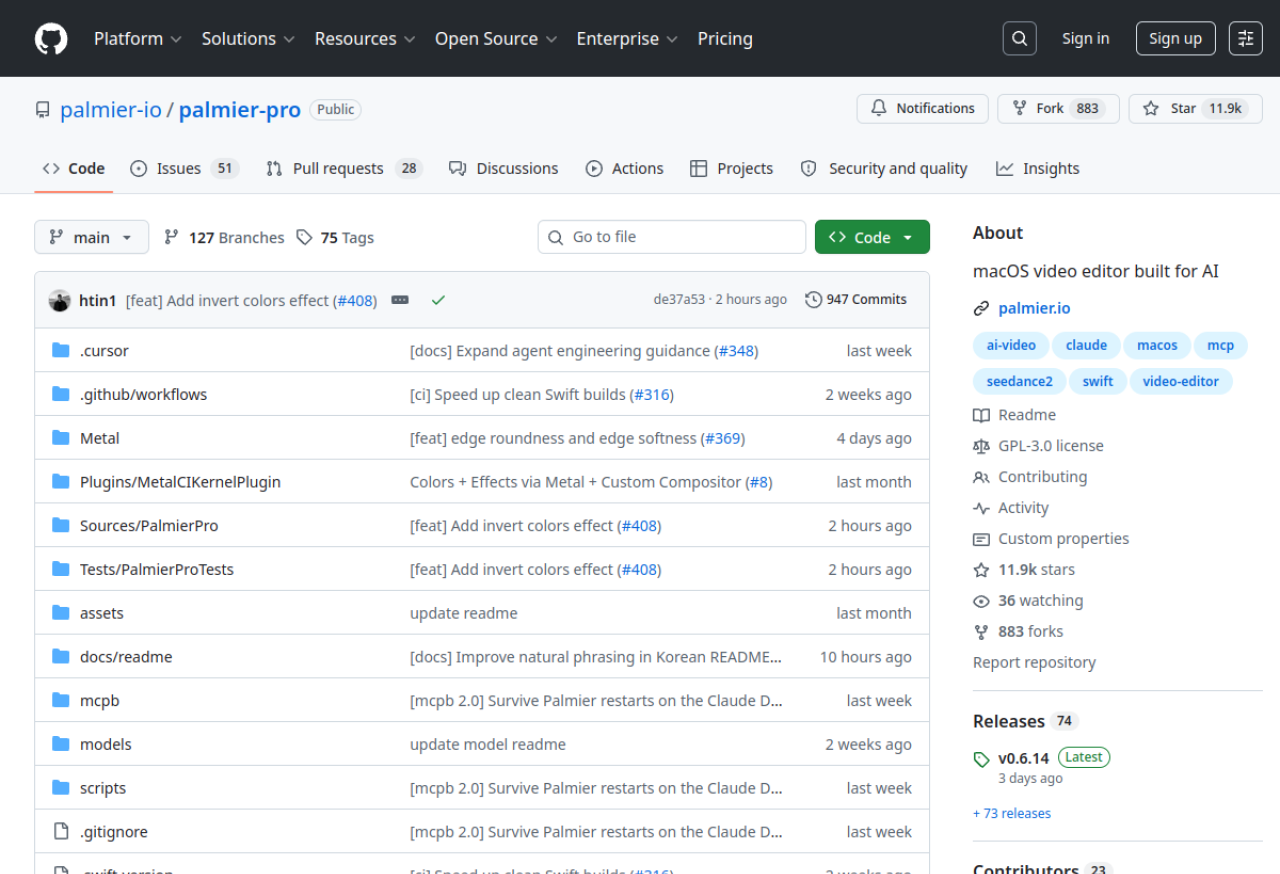
Grab the latest .dmg from the releases page of the GitHub repo — github.com/palmier-io/palmier-pro — and drag Palmier Pro into your Applications folder. No account or login is required just to launch the editor. First, though, confirm you're on macOS 26 (Tahoe) with an Apple-Silicon chip; if you're not, stop here, because there's no supported way to run it.
Pro tip: Check the requirement before downloading, not after. The "Apple Silicon, macOS 26" bar is the number-one reason people can't use Palmier — so verify your Mac qualifies first and save yourself the disappointment.
Step 3: Connect your AI agent to Palmier's MCP server

With the app open (so the server is running at http://127.0.0.1:19789/mcp), point your agent at it:
Claude Code
claude mcp add --transport http palmier-pro http://127.0.0.1:19789/mcp
For Claude Desktop, it's one-click: in Palmier, go to Help → MCP Instructions → Install in Claude Desktop. For Cursor, use its Help menu or add the same URL to ~/.cursor/mcp.json. Once connected, your agent can see and control the timeline.
Pro tip: Keep Palmier open while you work with the agent — the MCP server only runs while the app is open. If your agent says it can't reach the tools, the usual fix is simply that Palmier isn't running.
Step 4: Edit by instructing your agent in plain English

Now the payoff: talk to your agent as if it were an editor sitting next to you. Because it can read the timeline and pull transcripts, you can be specific and conversational: "Trim the first clip to 8 seconds," "Split clip 3 where she stops talking," "Reorder so the intro comes first," "Remove the long silent pauses." The agent performs each edit inside Palmier and you watch the timeline update. This is the automation the draft version of this tool got wrong — there's no JSON to write; you just describe the outcome.
Pro tip: Give one clear instruction at a time and watch the result before the next. "Do everything" prompts are hard to verify; a tight loop of instruct → check → instruct keeps you in control and catches a bad cut before it snowballs.
Step 5: Generate footage right in the timeline

Beyond cutting existing footage, you can create new shots without leaving the editor. Ask the agent to generate a clip and place it: "Generate a five-second aerial shot of a city at sunset and add it after clip 1." Palmier runs it through a generation model — Seedance for cinematic video, Kling for fast, character-consistent clips, or Nano Banana Pro for stylized looks — and drops the result into your timeline. Remember this is the paid part: generation runs on a subscription, while the editing itself is free.
Pro tip: Use generation to fill specific gaps (a b-roll shot you don't have), not to build whole videos. A generated 5-second insert that costs a few credits and saves a shoot is great value; generating everything gets expensive fast.
Step 6: Keep a human in the loop before you export

The agent is fast and mostly right — which is exactly why you should review, not rubber-stamp. Before exporting, skim the whole timeline: did an over-eager silence-trim clip a meaningful pause? Did a reorder break the story? Does a generated shot actually match? Fix anything off (again, just by telling the agent), then export. Treating the AI as a very fast assistant whose work you approve is what separates a polished result from an uncanny one.
Pro tip: Do a single full playback before export, every time. It's the cheapest quality check there is, and it catches the one weird cut or mismatched generated shot that a segment-by-segment review misses.
Step 7: Know where Palmier fits — and where it doesn't
Palmier is a genuinely new kind of tool, and it shines for a specific person: an Apple-Silicon creator who's comfortable driving an AI agent and wants to automate repetitive editing. It's not the right call if you're on Intel/Windows/Linux (it simply won't run), if you need a mature, battle-tested editor for high-stakes client work, or if you want heavy generation on a tight budget. For those, a traditional editor (DaVinci Resolve, Premiere) or a simpler AI tool (Descript, Opus Clip) may fit better.
Pro tip: Match the tool to your setup and stakes. "I'm on an M-series Mac and want my agent to do the boring cuts" → Palmier. "I'm on Windows / this is a paid client edit / I want free unlimited generation" → something else. Naming that up front saves a wasted download.
3 Common Mistakes to Avoid
Going Further
Key Takeaways
Sources: Palmier Pro — palmierai.pro · palmier-io/palmier-pro — GitHub · Palmier Pro: AI Video Editor with Claude MCP — ExplainX