AI 101: Using Comet Browser to automate repetitive web data extraction
Stop the endless "copy-paste" cycle. Learn how to use Perplexity's AI-native Comet Browser to navigate complex websites, fill out forms, and extract data into structured spreadsheets—all through simple conversation.
Introduction
For years, extracting data from the web (known as "web scraping") was a task reserved for programmers who knew how to write complex code. If you wanted to track competitor prices, find real estate listings, or build a list of potential leads, you had to do it manually—one click at a time.
Comet Browser (developed by Perplexity) represents the shift into the "Agentic Era." It isn''t just a window to the internet; it is a Browser with a Brain. Because it is AI-native, it understands the intent behind your actions. You can tell it a goal—like "find the cheapest flights and put them in a table"—and it will navigate the tabs, click the buttons, and organize the data for you. For non-techies, this is like having a tireless virtual assistant living inside your browser.
What You''ll Learn
How to activate Agent Mode to delegate multi-step web navigation
The secret to One-Click Extraction: Turning messy web pages into clean CSV/JSON files
How to use Control Borders to safely supervise AI as it fills out forms or navigates accounts
In a normal browser, you are the pilot. In Comet, you are the air traffic controller. You give the destination, and the AI handles the flight.
Step-by-Step Process
Step 1: Launch Comet
Open the browser and notice the Assistant Bar at the bottom of the screen
This is where you''ll communicate with the AI agent
Step 2: Define the Mission
Instead of searching for a single site, give the AI a complete mission
Example: "Go to Amazon, search for ''ergonomic office chairs,'' and find the top 5 products with at least a 4.5-star rating and over 1,000 reviews"
The more specific your instruction, the better the results
Step 3: Watch the Execution
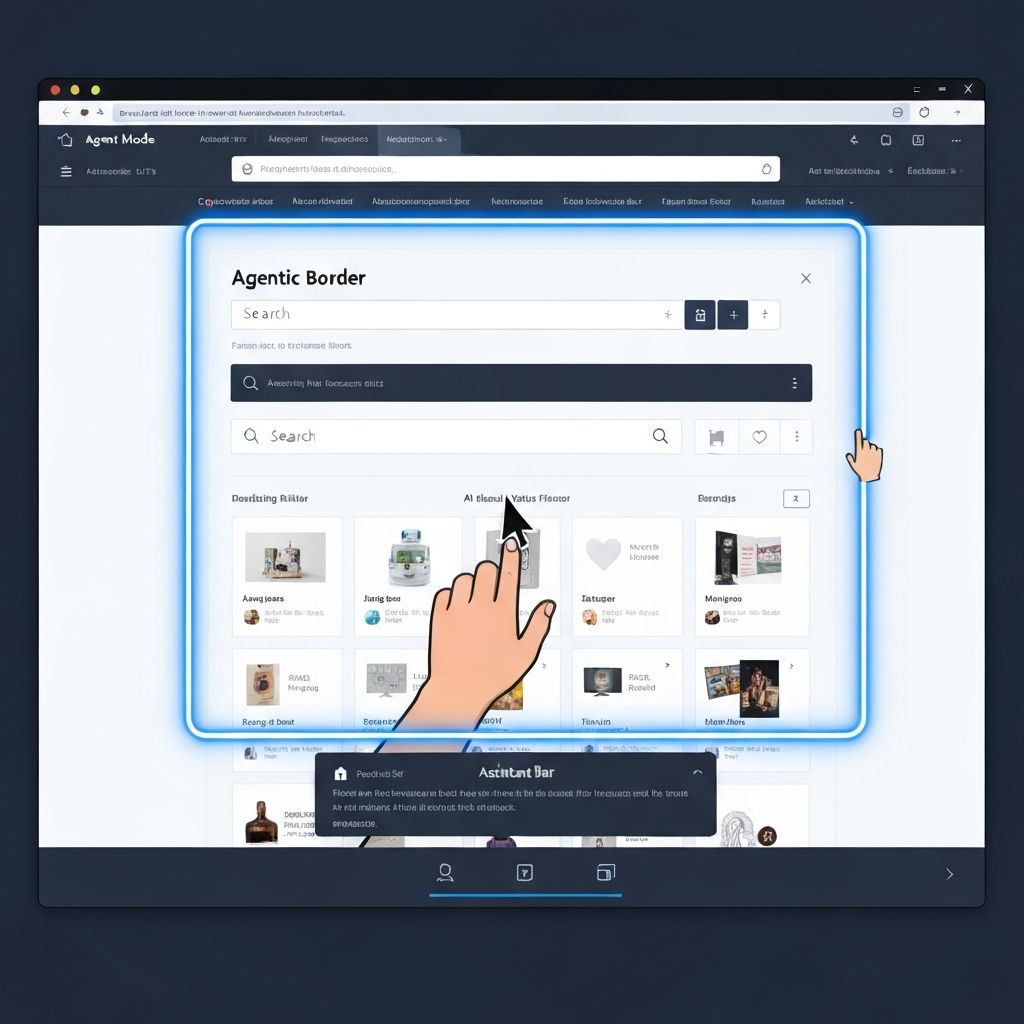
You will see a blue "Agentic Border" glow around the window
The AI will literally move the cursor, type in the search bar, click on filters, and scroll through results on its own
It''s actually controlling the browser, not just predicting results
Step 4: Get the Summary
Once finished, Comet will present a side-bar summary of what it found
This saves you from clicking through 20 different product pages
All the data you need is compiled and ready to use
The Magic: AI Agent vs. Search Engine
Unlike a search engine that gives you links to find yourself, Cometactually performs the actions. It:
Navigates through multiple pages
Fills in search parameters and filters
Reads and compares results
Extracts and organizes the findings
Returns everything in a clean summary
A Comet Browser interface showing Agent Mode in action with a blue "Agentic Border" glowing around a website. The AI cursor is visible interacting with search bars, filters, and product listings. An Assistant Bar at the bottom shows task instructions
Section 2: Zero-Code Data Extraction
The most powerful feature for productivity is turning "Visual Information" into "Structured Data."
Step-by-Step Process
Step 1: Navigate to a Data-Heavy Page
This could be:
A LinkedIn search result
A real estate portal (like Spacious or Zillow)
- A competitor''s pricing table
- Any website with information you want to collect
Step 2: Trigger the Extractor
Type into the assistant: "Extract all the listings on this page into a table. Include the price, the location, and the contact link."
Comet will analyze the page structure and identify data patterns
Step 3: Review and Export
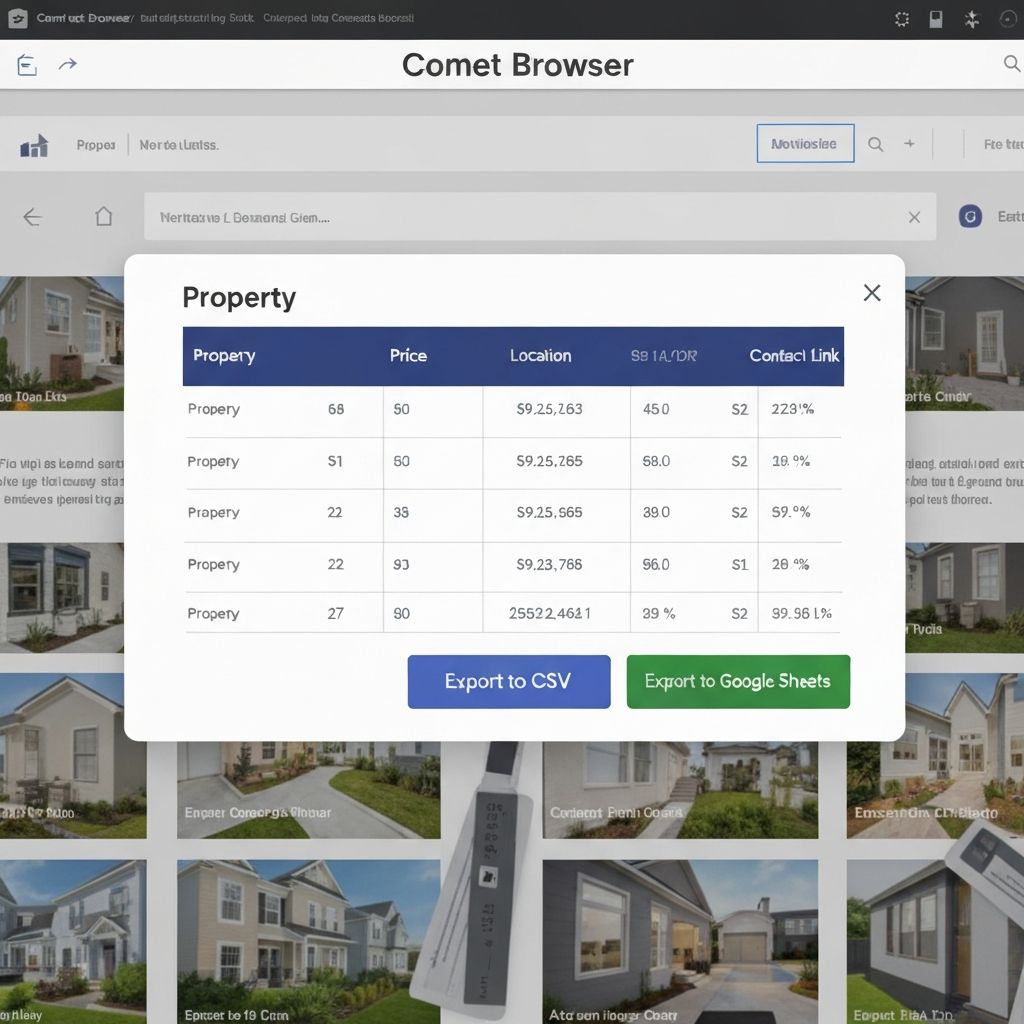
Comet will generate a clean table overlay on your screen
You can review the extracted data before exporting
Click "Export to CSV" or "Export to Google Sheets" to save the data
Step 4: Use the Data
Your structured data is now ready to import into your CRM, spreadsheet, or database
No more copy-paste errors or manual data entry
Why This Matters
Unlike old tools that broke when a website changed its design, Comet uses "Visual Reasoning" to understand what a "Price" or a "Header" looks like, making it much more reliable for beginners. The AI doesn''t depend on hard-coded code; it adapts to any website layout.
A Comet Browser interface showing data extraction with a clean table overlay displaying structured data including Price, Location, and Contact Link columns. Export buttons for CSV and Google Sheets are visible
Section 3: Automating Boring Admin & Forms
Comet can also handle "Human-in-the-Loop" automation, where it does the work but waits for your approval.
Step-by-Step Process
Step 1: Set Up Form Automation
If you need to register your startup for 10 different directories, open the first sign-up page
Tell Comet: "Fill out this form using my ''Founder Profile'' from my saved notes"
It will auto-populate the name, email, bio, and address fields instantly
Step 2: Review Before Submission
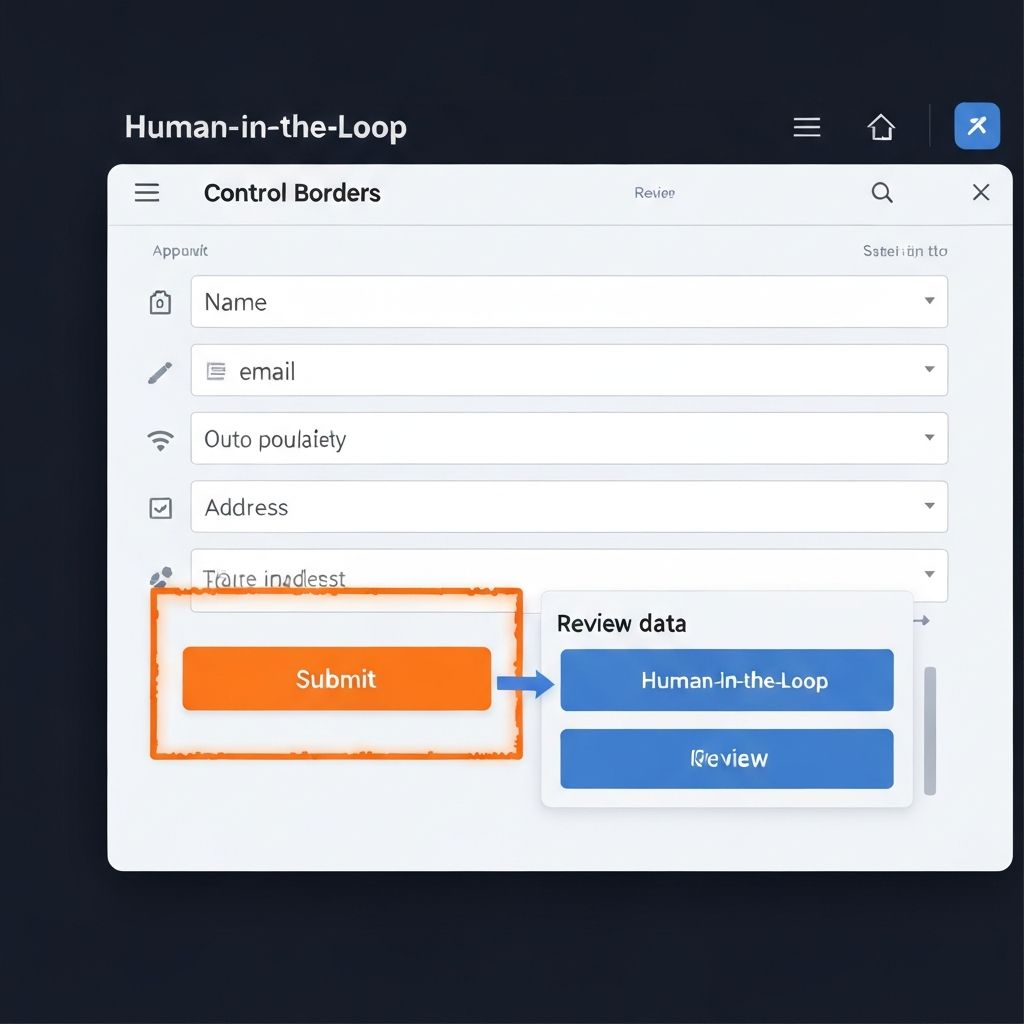
Whenever Comet is about to perform an action involving a "Submit" button or a payment, it will pause
The border will pulse in Orange, signaling you to review the data
Step 3: Approve and Execute
You review the pre-filled data to ensure accuracy
Only then does the AI click the final "Submit" or "Send" button
You stay in control of the critical "Buy" or "Authorize" commands
Why This Matters
This workflow removes the tedium without removing human oversight. You''re not worried that the AI will accidentally submit incorrect information because you review it first. It''s automation with a safety net.
A Comet Browser interface showing Control Borders safety feature. A form with auto-populated fields is visible with an orange-pulsing border highlighting a Submit button, indicating AI is waiting for human approval before execution
Pro Tips for Power Users
Tip 1: Multi-Tab Orchestration
You can ask Comet to "Open 5 different travel blogs and find a consensus on the best 3-day itinerary for Tokyo"
It will open all 5 tabs, read them simultaneously, and give you a unified answer
This is like having a researcher on your team
Tip 2: The "Shadow" Assistant
Use Comet as a "Co-pilot" for research while you''re reading
Example: "Find the LinkedIn profile of the author mentioned in this text and draft a connection request"
The AI works in parallel while you continue your main task
Tip 3: Privacy & Cookies
Comet can be instructed to handle cookie banners and pop-ups automatically
You never have to click ''Accept All'' again
Your browsing becomes uninterrupted and friction-free
Sample Commands to Copy/Paste
The Lead Generator
\\\ "Go to [Target Website], find the ''Team'' or ''About'' page, and create a list of all the executive names and their titles in a table." \\\
The Price Tracker
\\\ "Check the prices of [Product Name] on these 3 different websites and tell me which one currently has the best deal including shipping to Hong Kong." \\\
The Content Researcher
\\\ "Scan the top 10 results for ''AI Trends 2026'' and give me a bulleted list of every statistic mentioned, along with the link to the source." \\\
The Competitor Monitor
\\\ "Visit [Competitor Website] and extract all their product listings, pricing, and feature descriptions into a CSV file I can compare against my offerings." \\\
Expected Outcomes
By the end of this tutorial, you will have reclaimed hours of time previously spent on manual data entry. You will be able to treat the entire internet as your personal database, pulling information into your spreadsheets and systems with the ease of a simple conversation. You will:
✅ Stop doing manual copy-paste data entry forever ✅ Extract data from any website in seconds, not hours ✅ Build lead lists and competitive analyses on demand ✅ Automate form-filling and repetitive admin tasks ✅ Maintain full control over critical actions
Time Saved: 10-15 hours per week (compared to manual web scraping and data entry)
Closing Thought
The browser used to be a tool for viewing the web. With Comet, it becomes a tool for operating the web. For a non-techie, this is the closest thing to having "superpowers" in your daily digital workflow. The internet is no longer something you browse; it''s something you command.
Learn AI, after work
Track your progress, earn XP, and unlock more free tutorials in the AfterWork Bytes app.