Automate Your Meeting Notes with Gemini (the Real Way)
Let Gemini take your meeting notes automatically — via 'Take notes for me' in Google Meet, or the Gemini app / NotebookLM for recordings. (There's no 'Gemini 3.5 Transcribe.') Plus how to keep the notes accurate.
Overview
Nobody misses taking meeting notes. You're either half-listening while scribbling, or you're present but leave with nothing written down. Google's Gemini can take that job off your plate — capturing the conversation, summarizing the key points, and pulling out action items automatically, so you can actually pay attention. This guide shows the real, working ways to do it (and clears up a common myth about the tool's name).
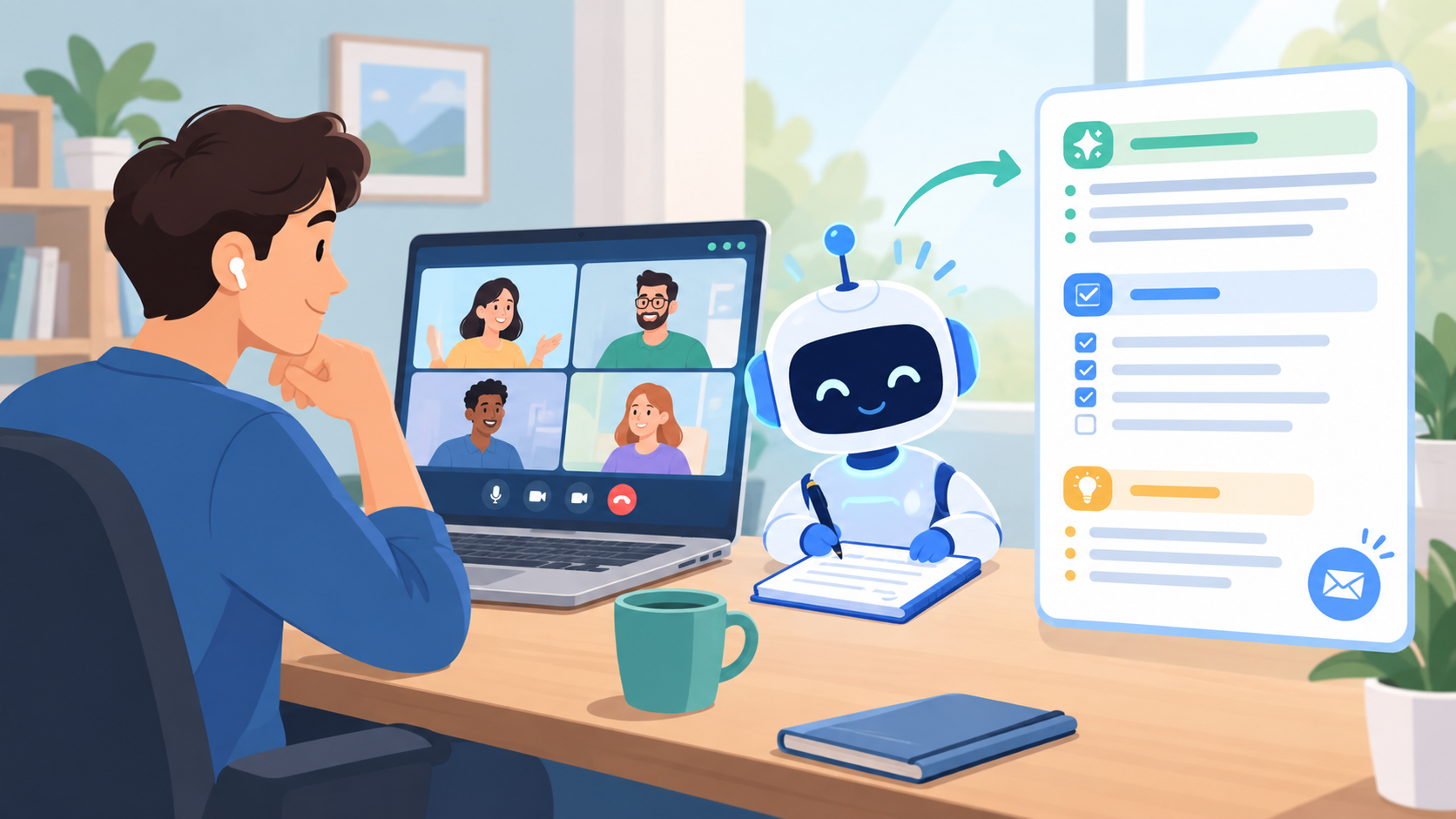
Let Gemini take your meeting notes: it captures the conversation, summarizes the decisions, and lists the action items — so you can actually be present.
Difficulty: Easy — no code · You'll need: Google Meet (with Gemini) or a recording + an AI app · Cost: free options exist; full Meet notes need a Gemini plan · Updated: September 2026
Three Real Ways to Get AI Meeting Notes
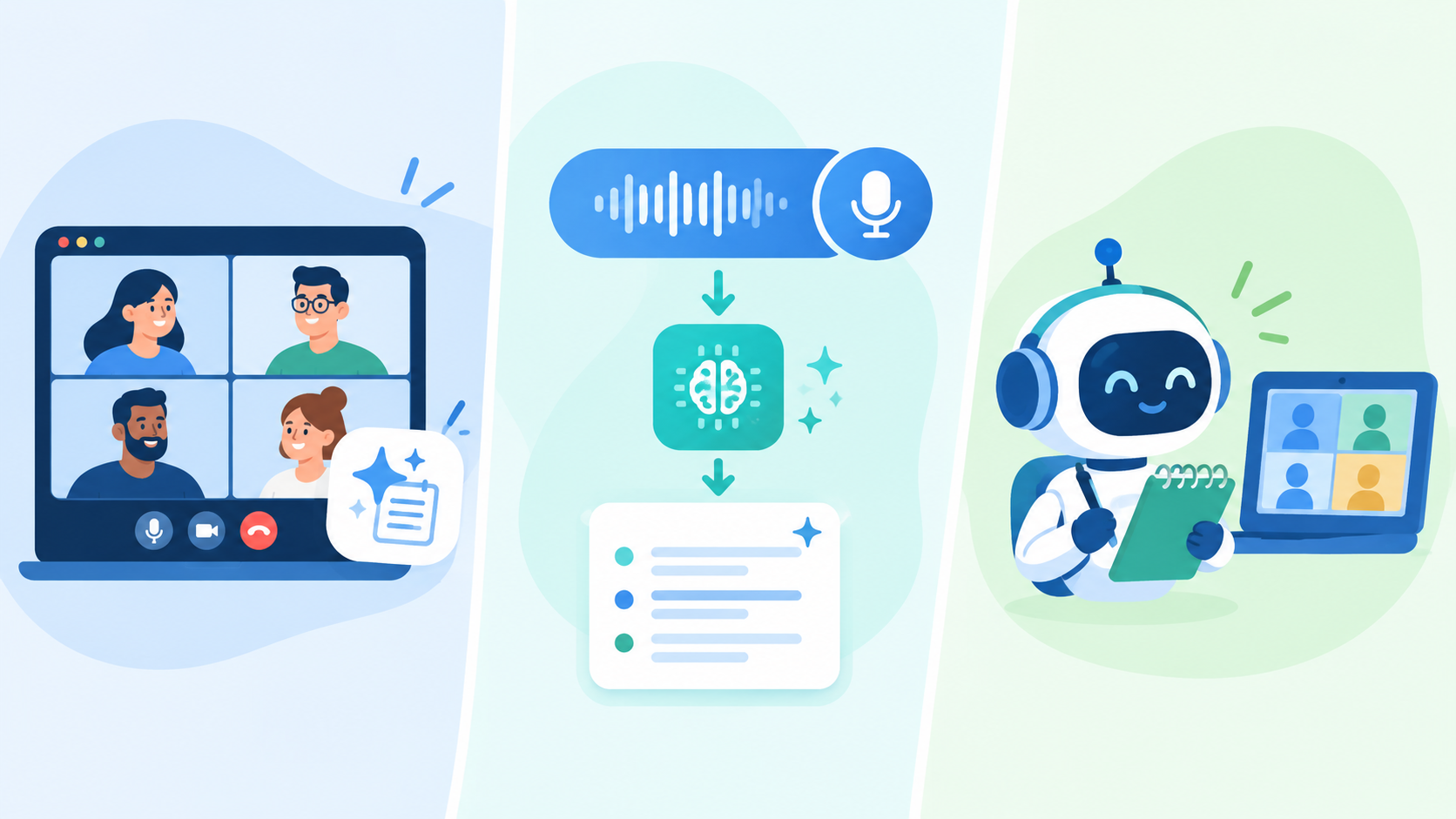
Three real options: live in a Google Meet call, from a recording via an AI app, or with a dedicated AI note-taker that joins the call.
Pick the one that matches how you meet:
Way 1: Live in Google Meet — "Take notes for me" (easiest)
This is the headline feature. During a Google Meet call, Gemini listens and writes the notes for you:
1. Start or join a Google Meet call. 2. At the top, click the "Take notes for me" button (the pencil/notes icon). Tell participants — it notifies the call. 3. Run your meeting normally. 4. When the call ends, Gemini automatically creates a Google Doc with a summary, key discussion points, decisions, and action items — saved to your Drive and emailed to the organizer. If transcription is on, speakers are attributed too.
Note: the full "Take notes for me" feature requires a Google AI (Pro/Ultra) plan or a Workspace edition with Gemini. There's also an in-person mode — open Meet, tap Take notes, and set your phone near the conversation to capture a real-room meeting.
Way 2: From a recording — use the Gemini app or NotebookLM
Already have an audio/video recording (from Zoom, Teams, or your phone)? You don't need Meet:
Gemini app — Gemini is multimodal, so you can upload the audio and prompt: "Transcribe this and give me a summary with decisions and action items."
NotebookLM — upload the recording (or its transcript) as a source and ask for notes; because it answers only from your source, it's less prone to making things up.
Way 3: A dedicated AI note-taker
Tools like Otter.ai, Fireflies, or Fathom send a bot that joins your calls, records, transcribes, and produces summaries automatically across platforms. Great if you live in back-to-back meetings.
In Meet, enable Take notes for me (and transcription if you want speaker labels). For a recording, have the file ready for the Gemini app or NotebookLM.
Step 2: Get consent
Tell everyone the meeting is being noted/recorded. It's polite, it's often legally required, and Meet announces it anyway.
Step 3: Be present
That's the whole point — stop scribbling and actually engage. Gemini has the notes.
Step 4: Review, then share
When the summary lands, spend two minutes checking it (see below), fix anything off, then share the doc or drop the action items into your task tool.
The Honest Limits (Read Before You Trust It)
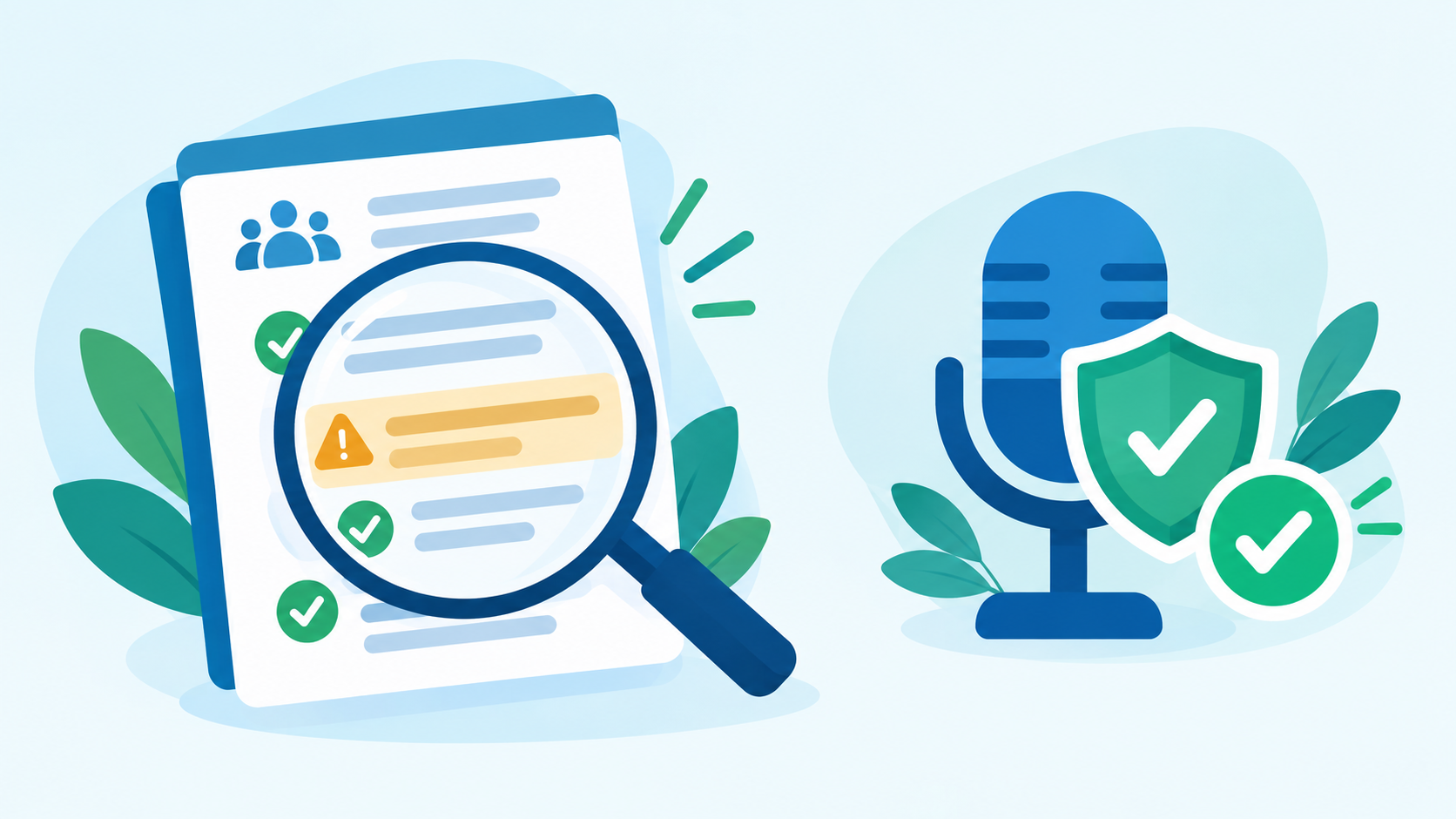
AI notes are a draft: verify the decisions and action items, and always get consent before recording.
AI note-takers are genuinely good, but they are assistants, not stenographers:
They miss and mangle things — especially names, numbers, technical terms, and who committed to what. Always verify the decisions and action items against your memory before acting.
They can smooth over nuance. A tentative "maybe we should…" can become a firm "we decided to…" in the summary. Check the ones that matter.
Consent is non-negotiable. Recording people without telling them can be illegal depending on where you are. Always announce it.
Sensitive meetings need care. For legal, HR, or confidential discussions, think about where the notes are stored and who can see them.
Common Mistakes to Avoid
Chasing a product that doesn't exist. "Gemini 3.5 Transcribe" set up via a cloud console is a fiction. Use "Take notes for me" in Meet, or the Gemini app / NotebookLM for recordings.
Sharing notes unread. A wrong action item that goes to the whole team is worse than no notes. Always review first.
Skipping consent. Announce recording, every time.
Poor audio. Cross-talk and background noise wreck accuracy. Encourage one-at-a-time speaking and decent mics.
Pro Tips
Ask for the format you want. With the Gemini app, prompt for exactly what you need: "Summary, Decisions, Action items (with owners), Open questions."
Always capture owners and dates. Action items without a who and a when don't get done.
Use transcription for disputes. When exact wording matters, turn on the full transcript, not just the summary.
Feed notes into your tasks. Paste action items straight into your to-do app or ask the AI to format them for it.
Keep a searchable archive. Saving summaries to Drive turns past meetings into a searchable knowledge base.
Key Takeaways
The real tool is "Take notes for me," powered by Gemini in Google Meet — automatic summary, decisions, and action items in a Google Doc. (There's no "Gemini 3.5 Transcribe.")
Three paths: live in Meet, from a recording via the Gemini app / NotebookLM, or a dedicated note-taker like Otter/Fireflies/Fathom.
Full Meet notes need a Gemini plan; recordings + the Gemini app or NotebookLM are the flexible, lower-cost route.
Always get consent before recording, and always review the summary — AI notes miss names, numbers, and nuance.
Capture owners and deadlines so action items actually happen.
Feature availability, plan requirements, and pricing change; verify against Google's official pages. Always get consent before recording, and review AI-generated notes before relying on them.
Learn AI, after work
Track your progress, earn XP, and unlock more free tutorials in the AfterWork Bytes app.