AI 101: Using Kimi Slides to transform dense reports into executive summaries
Stop getting lost in long documents. Learn how to use Kimi's advanced reasoning to distill complex reports, research papers, or PDFs into clear, visual, and professional slide decks.
Introduction
For non-techies and business professionals, the hardest part of creating a presentation isn''t the design—it''s the synthesis. How do you take a 50-page industry report or a dense project update and turn it into 10 high-impact slides? Kimi Slides (powered by Moonshot AI) is specifically designed for this "heavy lifting." Unlike basic generators, Kimi excels at long-context understanding, meaning it actually "reads" your data before it starts designing.
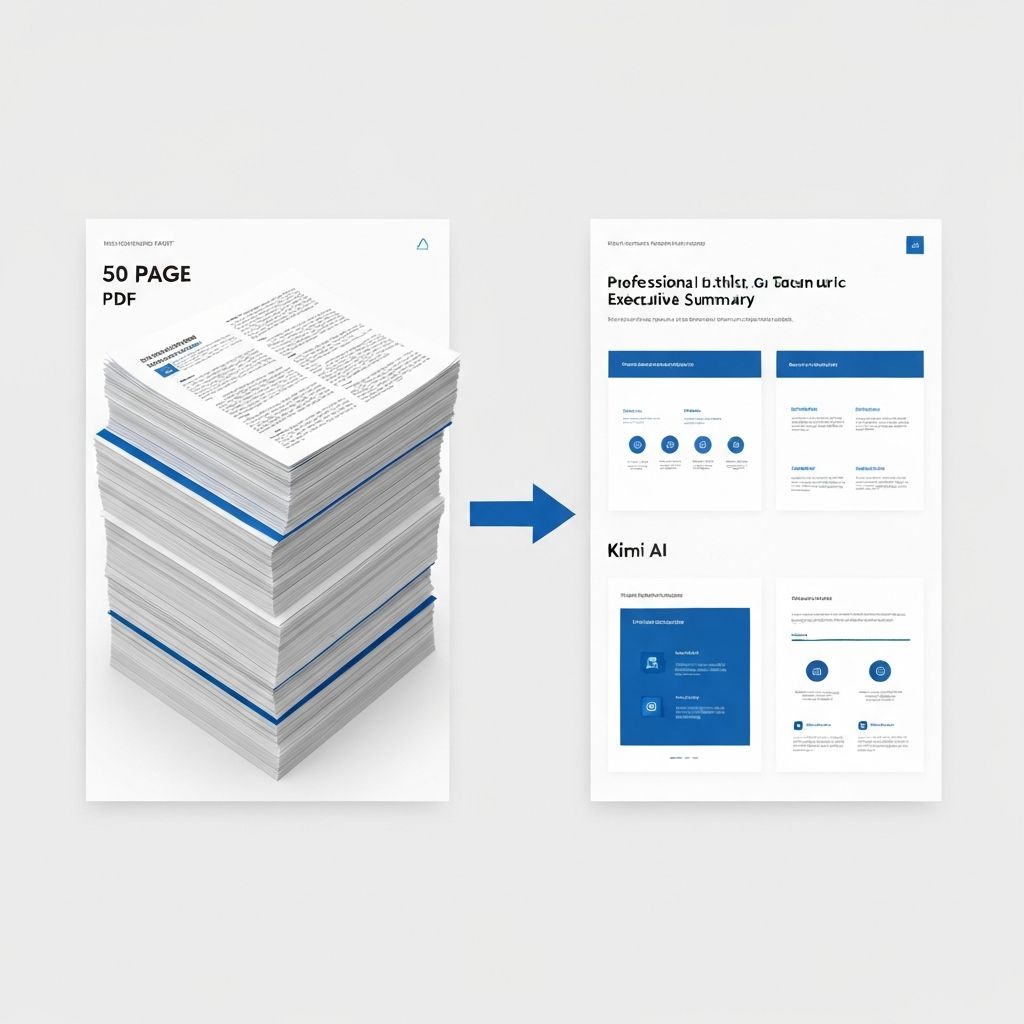
A visual transformation showing a thick 50-page PDF document transforming into a clean, minimal 10-slide executive summary with professional presentation layouts
What You''ll Learn
How to upload large PDFs or Word docs for instant AI analysis
The process of "Iterative Drafting": refining the outline before the slides are built
How to export your AI-generated deck back into a standard PowerPoint (.pptx) file
Best practices for working with Kimi''s massive context window
Tool You''ll Be Using
Kimi AI: https://www.kimi.com/ (Look for the "Slides" or "Kimi+" agent in the sidebar)
Section 1: The "Deep Read" Upload
Kimi''s superpower is its massive context window. It can handle dozens of files at once without losing track of the details.
Step-by-Step Process
Step 1: Access Kimi Slides
Open the Kimi AI interface and select the "AI Slides" or "Visual Agentic Slides" tool
You should see a clean interface with upload options
Step 2: Upload Your Source Material
Click the Paperclip icon to upload your "source of truth"
This could be:
A PDF report (industry analysis, research paper, quarterly update)
- A long Word document
- Even a link to a long-form article or Google Doc
You can upload multiple files at once
Step 3: Define Your Audience
Enter a prompt that frames your presentation
Example: "Read this project report and create an executive summary presentation for our investors. Focus on the financial ROI and the Q3 roadmap."
The more specific you are, the better Kimi tailors the output
The Magic: Context Window
Unlike ChatGPT-based tools that lose context after a few hundred words, Kimi can process entire reports and synthesize key insights across 50+ pages without losing detail.
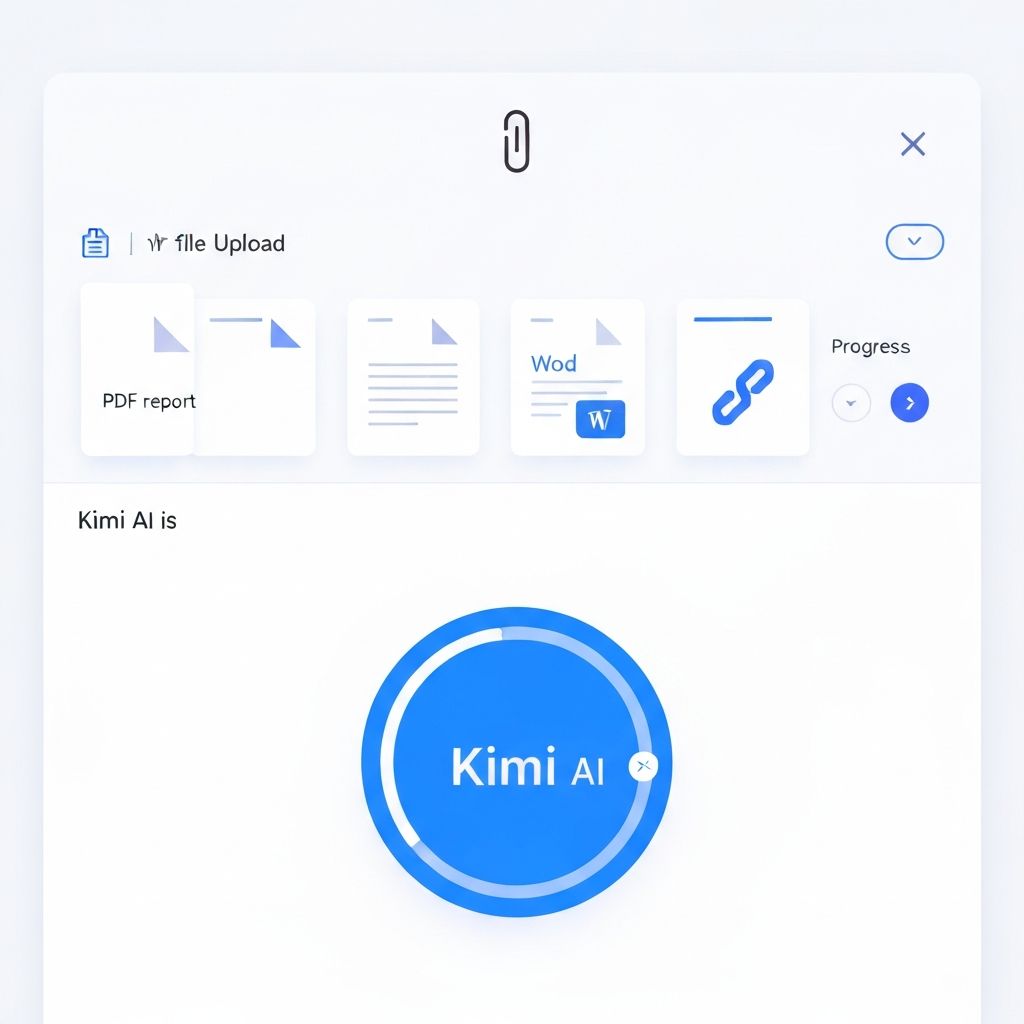
A user interface showing multiple documents being uploaded - a PDF report, Word document, and link, all being processed simultaneously with Kimi AI
Section 2: The Outline Guardrail
One of the best features of Kimi is that it doesn''t jump straight to design. It provides an Editable Outline first.
Review the Generated Outline
Step 1: Examine Kimi''s Initial Structure
Kimi generates slide titles and bullet points based on your source material
This "Iterative Drafting" step is crucial. It ensures the AI is aligned with your vision before it invests design effort. You catch misalignments early and guide the creative process.
A split-screen showing Kimi's AI-generated outline on the left with slide titles that can be edited. On the right, a user refining and modifying titles, reordering slides, and adjusting content
Section 3: Leveraging Kimi''s Context Window
Kimi''s massive context window is its greatest asset. It can process documents most AI tools can''t even "read."
What Kimi Can Handle
Large Documents
50+ page PDFs without losing detail
Long-form reports with scattered key information
Multi-section documents (e.g., a report with executive summary, appendix, and footnotes)
Multiple Files
Upload a main PDF + supporting spreadsheets
Upload research papers + data visualizations
Kimi synthesizes information across files automatically
Complex Data
Tables and charts embedded in PDFs
Financial reports with dense numbers
Research papers with citations and references
The Synthesis Magic
Kimi doesn''t just extract bullet points—it understands relationships between ideas. For example:
It connects "Q2 revenue decline" → "Seasonal patterns" → "Expected recovery in Q3"
It sees "New product launch" → "Target market shift" → "Team restructuring needed"
This contextual understanding makes presentations feel intelligent and cohesive, not just a list of facts.
A visual representation of Kimi's massive context window showing multiple documents being processed together, with connections showing how Kimi understands relationships between documents
Section 4: From AI-Generated to PowerPoint Ready
Once you''re happy with the AI-generated slides, Kimi exports everything into a standard PowerPoint (.pptx) file that you can edit further.
Export and Download
Step 1: Click "Export" or "Download"
Located at the top or bottom of the Kimi interface
Select "PowerPoint" or ".pptx" format
Step 2: Download Your File
Kimi generates a standard PowerPoint file
Opens directly in Microsoft PowerPoint, Google Slides, or any presentation software
Step 3: Make Final Tweaks
Adjust colors to match your brand
Add company logos or footer information
Fine-tune animations or transitions
Add speaker notes if needed
Post-Export Best Practices
Brand Consistency: Add your company colors and fonts
Speaker Notes: Use the notes section to prepare talking points
Visual Hierarchy: Ensure fonts are readable from 10 feet away
Chart Optimization: Verify data visualizations are clear and accurate
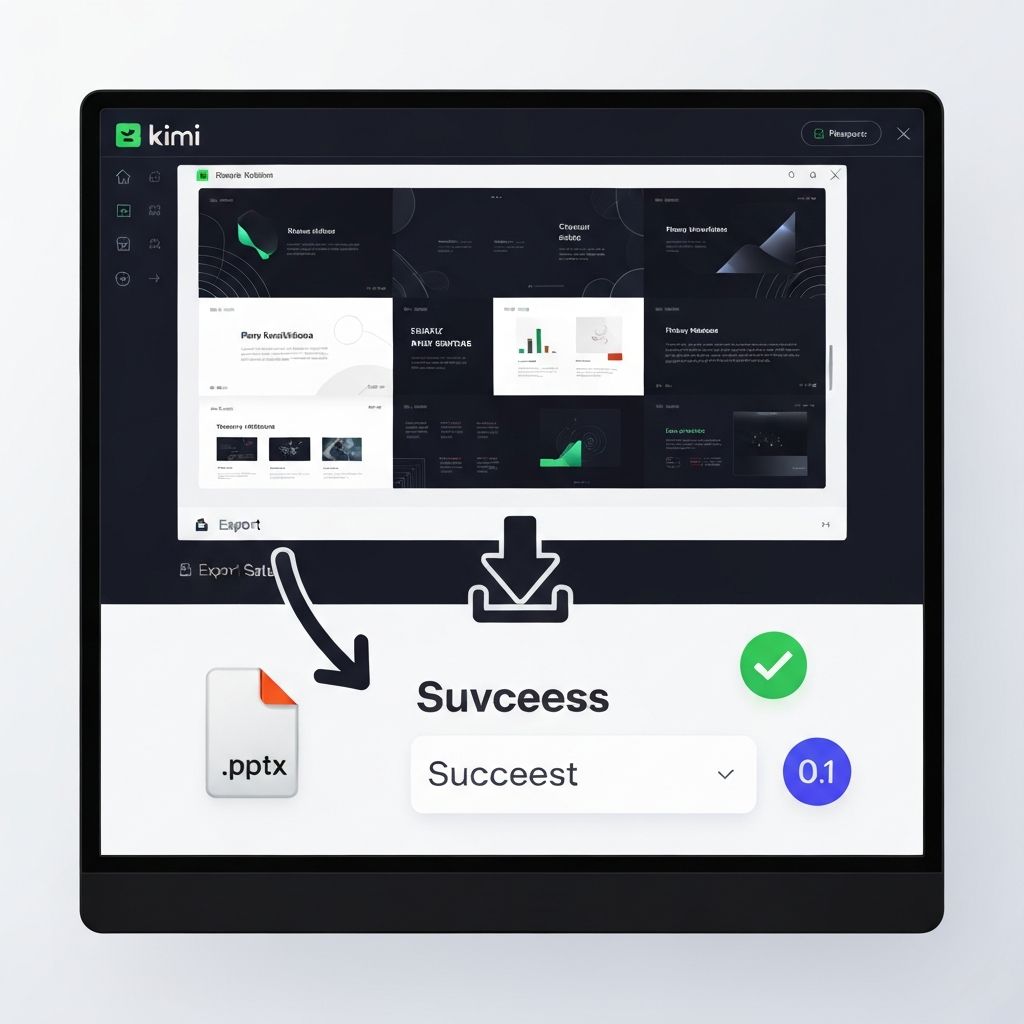
A generated presentation slide deck displayed on a screen, with a download arrow pointing to a PowerPoint file icon, showing successful export from Kimi to standard PowerPoint format
Common Use Cases
Use Case 1: Investor Pitch from a Business Plan
\\\ Upload: Your 30-page business plan Prompt: "Create a 15-slide investor pitch deck highlighting problem, solution, market size, traction, and team. Focus on financial projections." Result: Professional pitch deck ready for investor meetings \\\
Use Case 2: Executive Summary from a Research Paper
\\\ Upload: A 50-page research paper on AI trends Prompt: "Distill this into an 8-slide executive summary for C-suite leaders. Emphasize practical implications and what we should do about it." Result: High-level, action-oriented presentation \\\
Use Case 3: Quarterly Review from Email and Docs
\\\ Upload: Q3 reports, team updates, financial spreadsheets Prompt: "Create a 12-slide quarterly board review. Include key metrics, wins, challenges, and roadmap for Q4." Result: Comprehensive quarterly review slides \\\
Pro Tips for Power Users
Tip 1: Be Specific in Your Prompt
❌ Vague: "Make a presentation about this report"
✅ Specific: "Create 10 slides for our product roadmap presentation. Focus on Q4 launches, resource needs, and competitive positioning. Audience is the exec team."
Tip 2: Use Multiple Prompts for Multiple Versions
Generate one version for investors
Generate another version for internal stakeholders
Generate a third for customer case studies
All from the same source document
Tip 3: Combine Documents Strategically
If presenting on market trends: Upload industry report + your company financial data
If presenting on product: Upload product roadmap + customer feedback + competitive analysis
Kimi will synthesize all three perspectives
Tip 4: Iterate on Outlines
First draft: General overview
Second draft: Deep dive into metrics
Third draft: Action-oriented recommendations
Each iteration can be a different presentation for different audiences
Expected Outcomes
After this tutorial, you should be able to:
✅ Upload large, complex documents without overwhelming the AI ✅ Guide Kimi''s output through strategic outline refinement ✅ Export presentation-ready PowerPoint decks in minutes (not hours) ✅ Understand when to use Kimi vs. other presentation tools ✅ Create data-backed presentations with minimal manual effort
Time Saved: 4-6 hours per complex presentation (compared to manual synthesis + design)
Closing Thought
The future of business presentations isn''t about prettier designs—it''s about smarter synthesis. Kimi''s ability to read entire reports and extract the narrative is what separates a good presentation from one that actually drives decisions.
Stop copy-pasting from PDFs. Let AI do the heavy cognitive lifting.
Learn AI, after work
Track your progress, earn XP, and unlock more free tutorials in the AfterWork Bytes app.